"Steam Deck: Guide to Playing Game Boy Games"
Quick Links
The Steam Deck, a versatile gaming device, not only handles modern games with ease but also offers extensive customization options due to its PC-like architecture. With EmuDeck, you can transform your Steam Deck into a powerhouse for retro gaming, including the classic Game Boy. The charm of these games, despite their age, lies in the meticulous craftsmanship and the nostalgic appeal of their limited color palette. Here's a comprehensive guide on installing EmuDeck and playing Game Boy games on your Steam Deck.
Updated January 13, 2024, by Michael Llewellyn: Game Boy emulation on the Steam Deck is efficient due to the system's low power requirements. However, to ensure optimal performance and authenticity, the developers suggest installing Decky Loader and the Power Tools plugin to manage SMTs and other settings. This guide has been updated to include steps for installing Decky Loader and Power Tools, as well as instructions for restoring Decky Loader after a Steam Deck update.
Before Installing EmuDeck
 Before you dive into installing EmuDeck, ensure you have the following essentials to smoothly run emulators and store your favorite Game Boy games:
- A fully charged Steam Deck.
- An A2 microSD card for installing games and emulators.
 - Legally acquired Game Boy ROMs.
- A Bluetooth or wired keyboard and mouse for browsing and transferring ROMs, especially if using a Steam Deck docking system.
Change Developer Mode
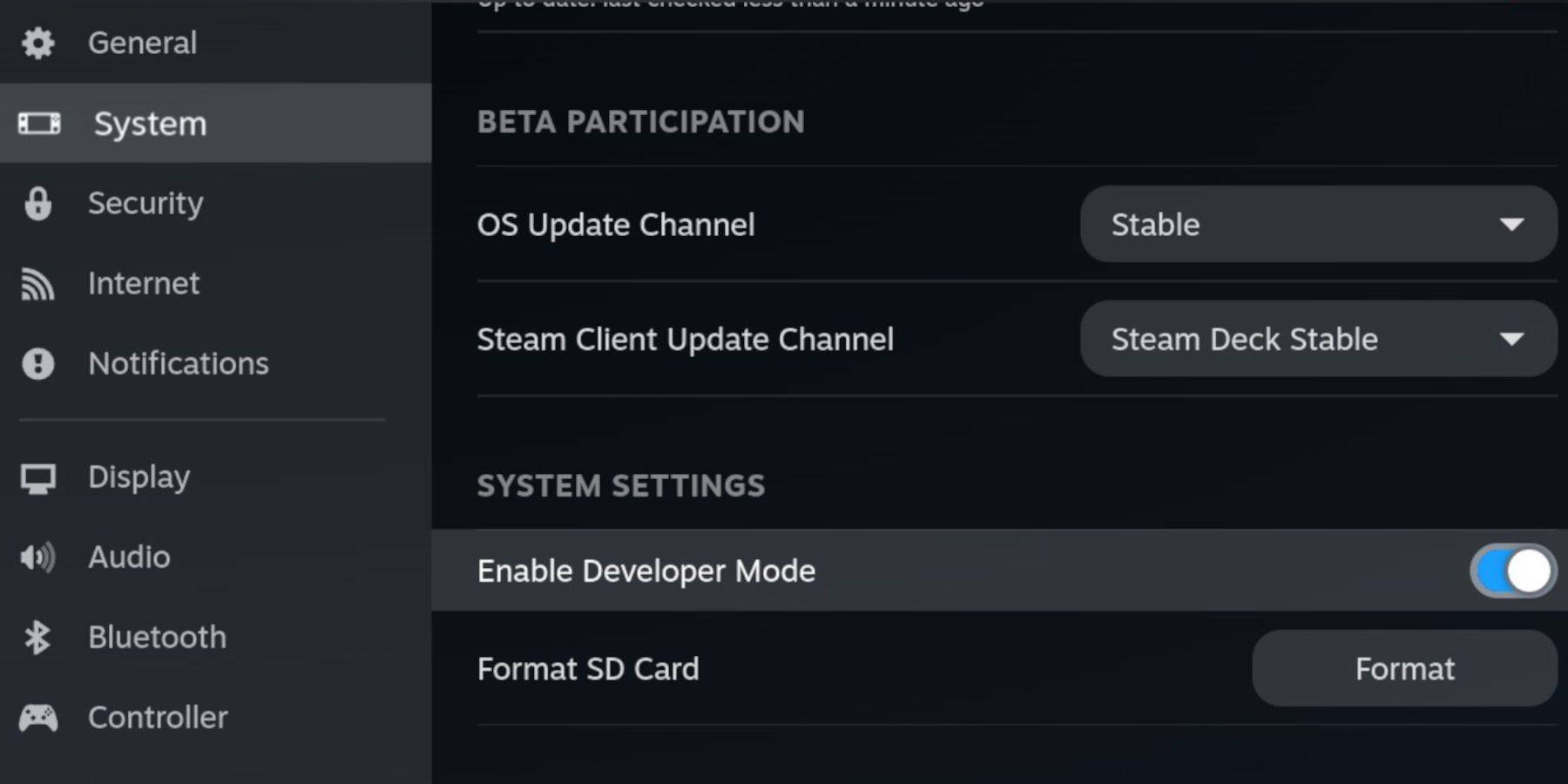
To get started, you'll need to enable Developer Mode on your Steam Deck:
- Press the Steam button.
- Navigate to the System menu and toggle Developer Mode on.
- Open the Developer menu and enable CEF Debugging.
- Go to the Power option and select Switch to Desktop Mode.
- Press the Steam button below the left trackpad, highlight Power, and switch to Desktop Mode.
Download EmuDeck In Desktop Mode
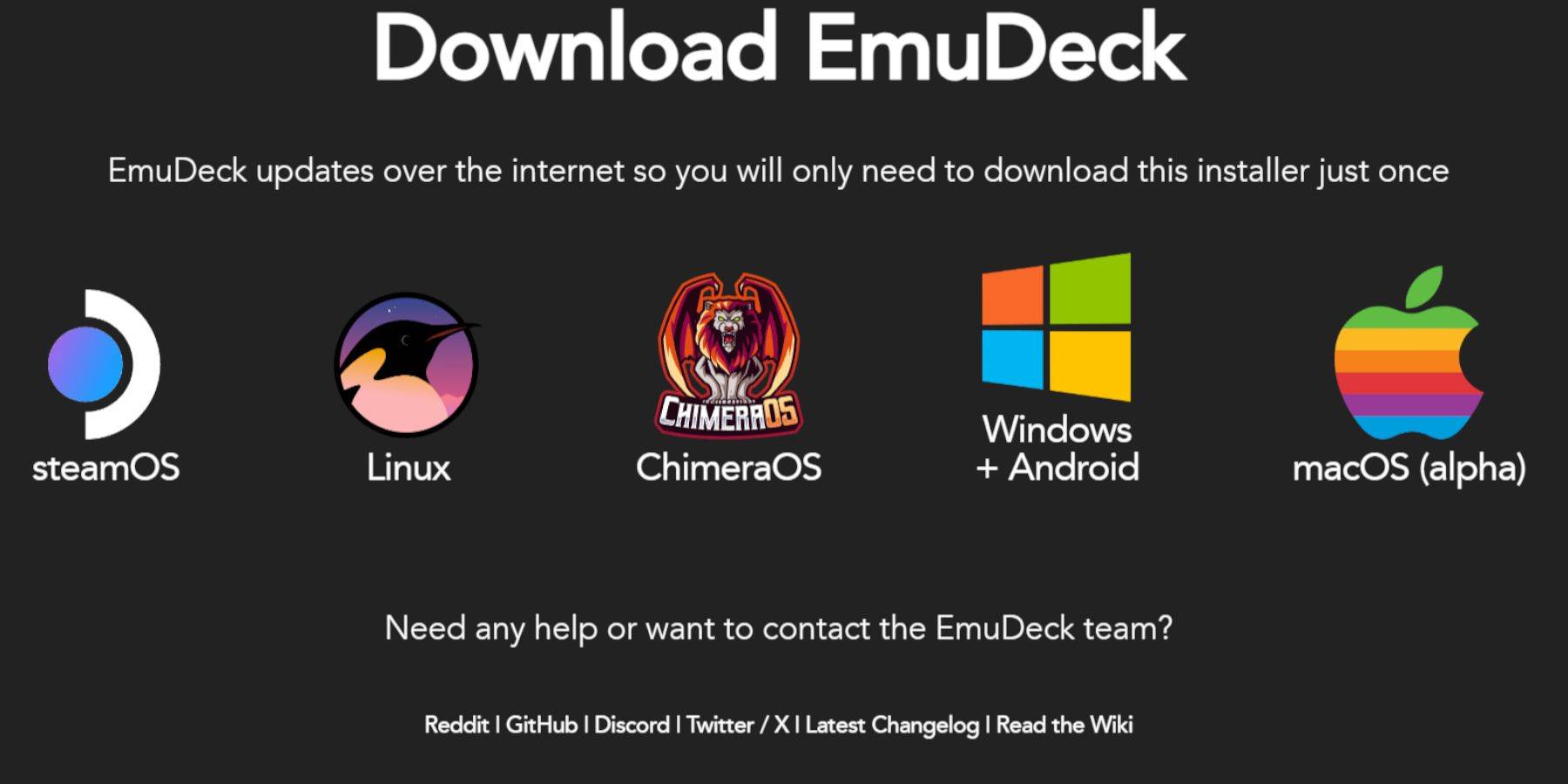 Once in Desktop Mode, connect your keyboard and mouse and follow these steps to download EmuDeck:
- Launch a browser like DuckDuckGo or Mozilla Firefox and navigate to the EmuDeck website.
- Click the Download button at the top-right of the page, select Steam OS, and choose Download for Free.
- Opt for Recommended Settings, then select Custom Install.
- In the EmuDeck menu, choose the SD card image labeled Primary.
- You can install all emulators or select RetroArch, Emulation Station, and Steam ROM Manager, then click Continue.
- Enable Auto Save.
- Skip the subsequent screens and click Finish to complete the installation.
Quick Settings
- Open the EmuDeck program and navigate to Quick Settings.
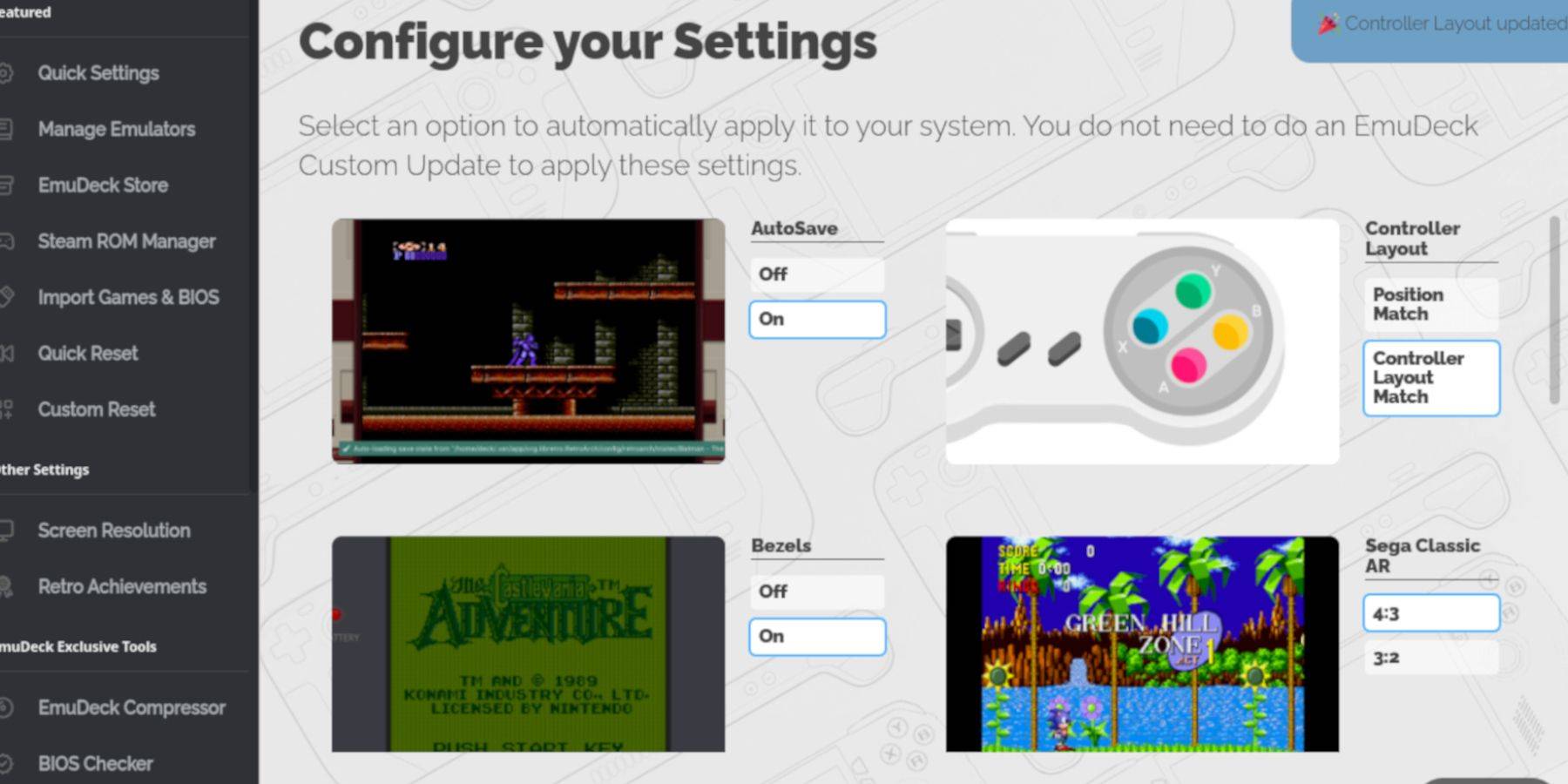 - Turn AutoSave On.
- Select Controller Layout Match.
- Enable Bezels.
- Turn on Nintendo Classic AR.
- Enable LCD Handhelds.
Adding Game Boy Games To The Steam Deck
 With EmuDeck installed, it's time to add your Game Boy games to the correct folder in Desktop Mode:
- Use Dolphin File Manager to access your files.
- Click on Primary under Removable Devices on the left panel.
- Navigate to the Emulation folder, then open ROMS.
- Find and open the folder named gb.
- Ensure your ROMs have the correct file extension (.gb).
- Transfer your Game Boy files into this folder.
Steam ROM Manager
After placing your games in the correct folder, reopen the EmuDeck program and follow these steps:
- Click on Steam ROM Manager in the left panel.
- Select Yes to close the Steam client and click Next.
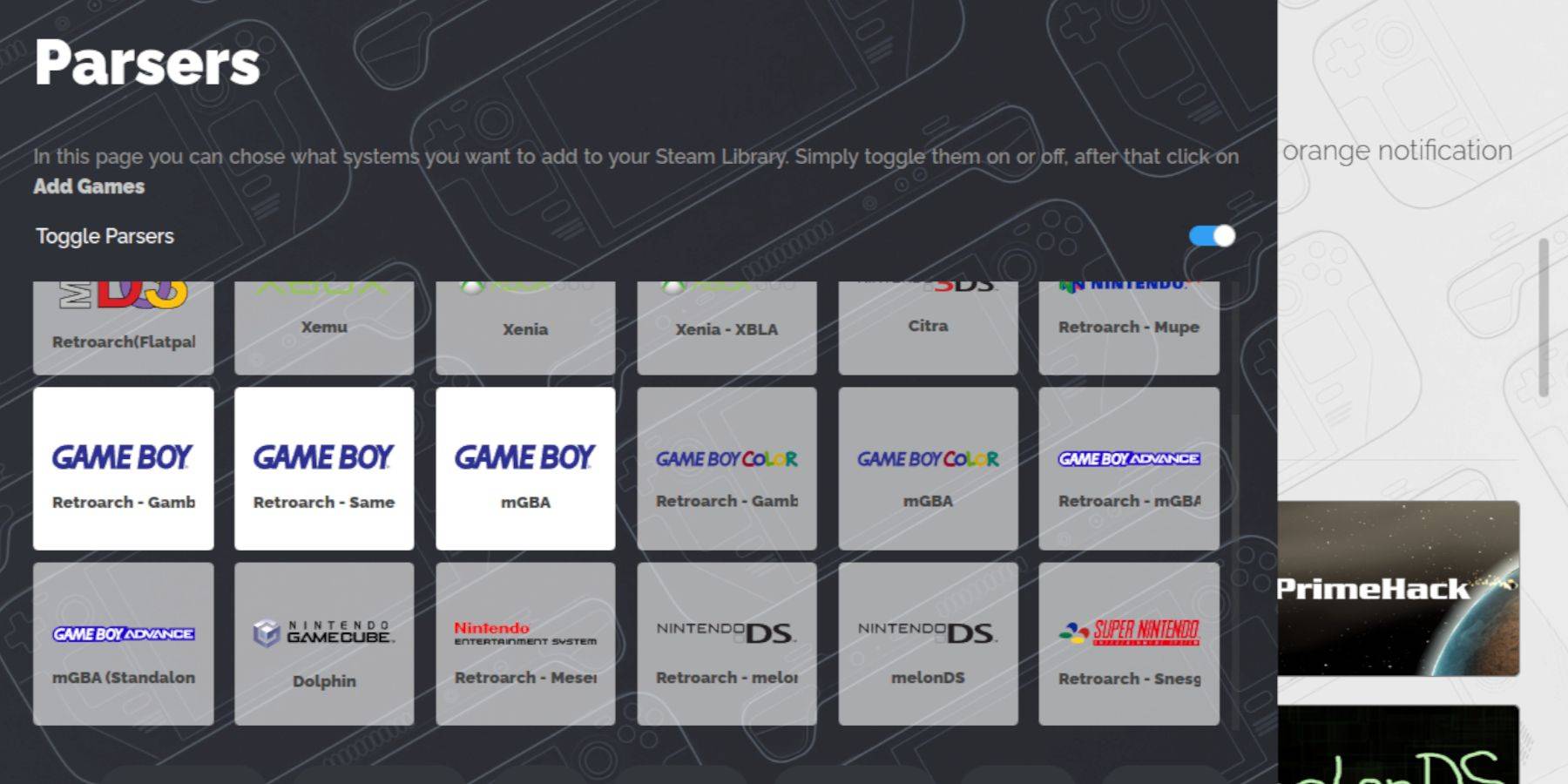
- In the Parsers screen, toggle Parsers off.
- Click on the three Game Boy tabs.
- Select Add Games.
- Once the Steam ROM Manager has added the games and their cover art, click Save to Steam.
- Wait for the "Done adding/removing entries" message, then close the Steam ROM Manager.
- Exit EmuDeck and return to Gaming Mode.
Playing Game Boy Games On The Steam Deck
Now that your games are added, you can easily access them from your Steam Deck's library:
- Press the Steam button.
- Open the Library.
- Navigate to the Collections tab.
- Select one of the new Game Boy windows.
- Open the game and tap Play.
Customize The Game's Colors
Some Game Boy games include color options, despite the original hardware's limitations. You can enhance your gaming experience by adjusting colors through RetroArch:
Not all Game Boy games support color options.
- Launch a Game Boy game.
- Press the Select button (with two squares above the left analog stick) and the Y button to open the RetroArch menu.
- Navigate to Core Options.
- Open GB Colorization.
- Choose Auto for color or Off for a more authentic Game Boy experience.
Using Emulation Station For Game Boy Games
 While you can launch your Game Boy games directly from the Steam Library, Emulation Station offers an alternative method, especially useful if you encounter issues with retro titles:
- Press the Steam button.
- Open the Library.
- Go to the Collections tab.
- Select the Emulators window.
- Tap on the Emulation Station window and select Play.
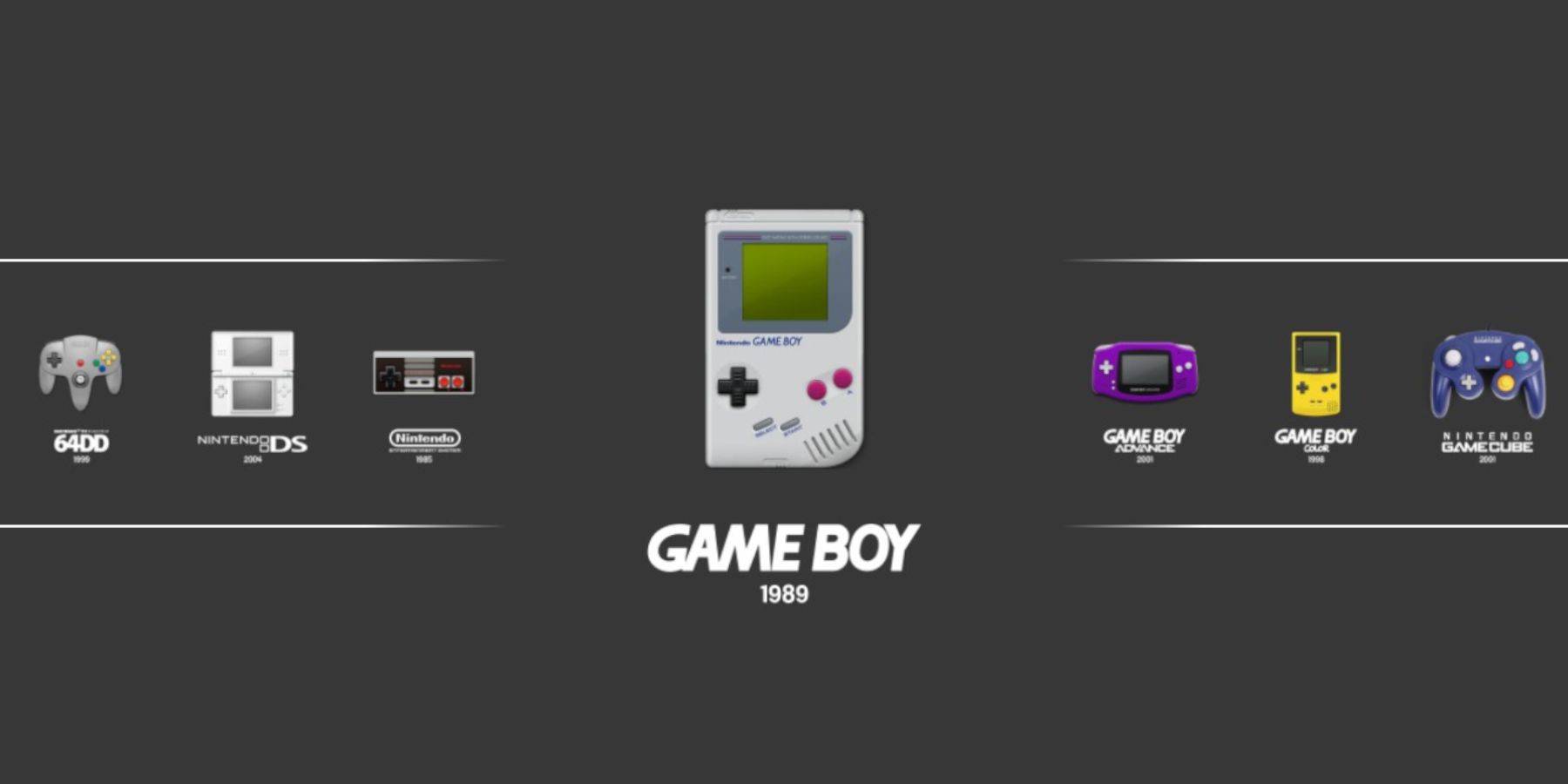
- Scroll to the Game Boy icon and press A to open it.
- Press A again to launch your Game Boy games.
- The RetroArch command (Select + Y) also works through Emulation Station.
Install Decky Loader On The Steam Deck
 To optimize the performance of your Game Boy games, the EmuDeck developers recommend installing Decky Loader along with the Power Tools plugin. Here's how to set it up:
For easier navigation, connect a wireless or wired keyboard and mouse. If unavailable, use the onscreen keyboard and trackpads.
- In Gaming Mode, press the Steam button.
- Open the Power menu and switch to Desktop Mode.
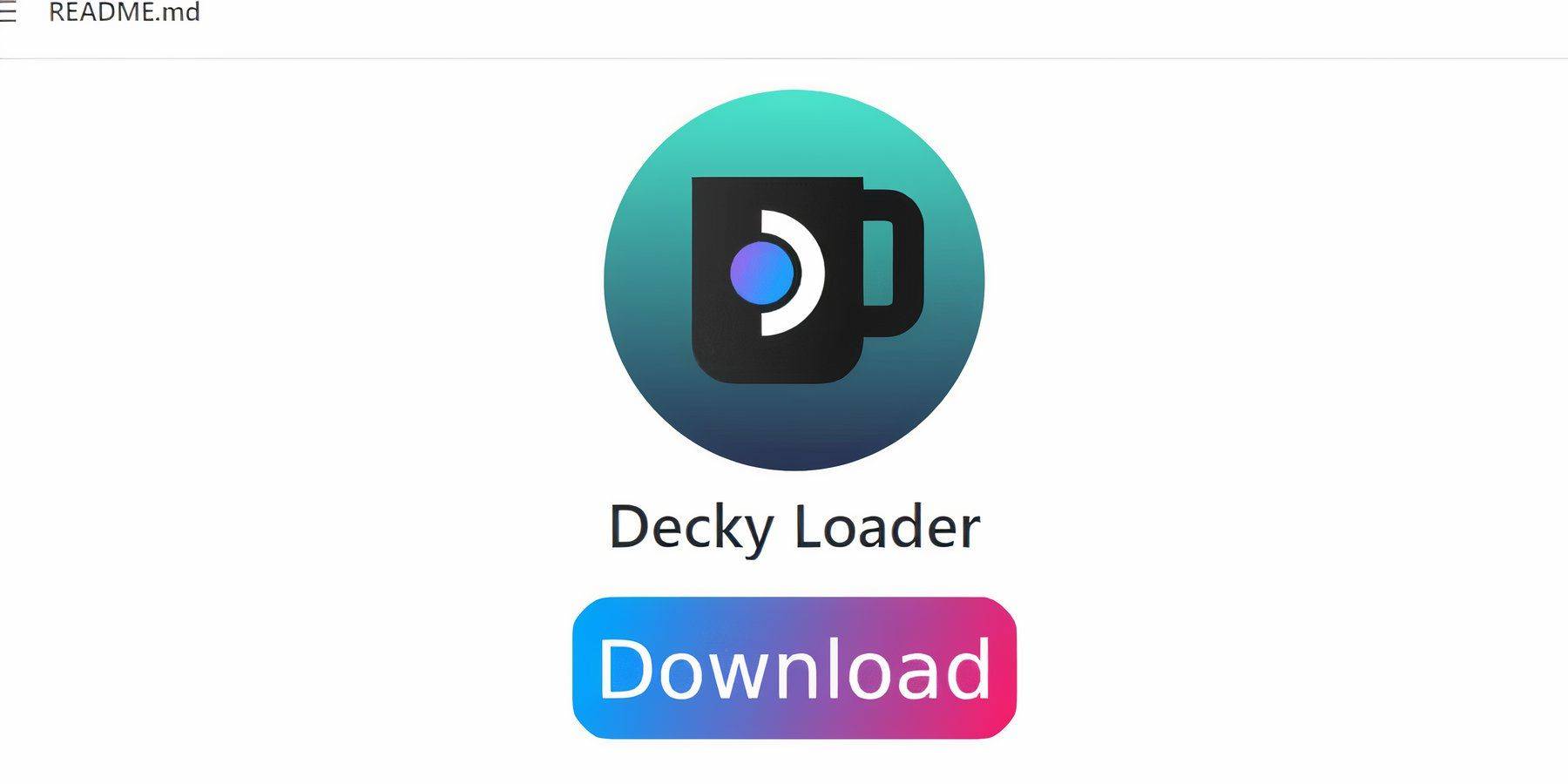
- Launch a web browser and visit the GitHub page for Decky Loader.
- Scroll down and click the large Download icon to start the download.
- Once downloaded, double-click the launcher and select Recommended Install.
- After installation, restart your Steam Deck in Gaming Mode.
Installing The Power Tools Plugin
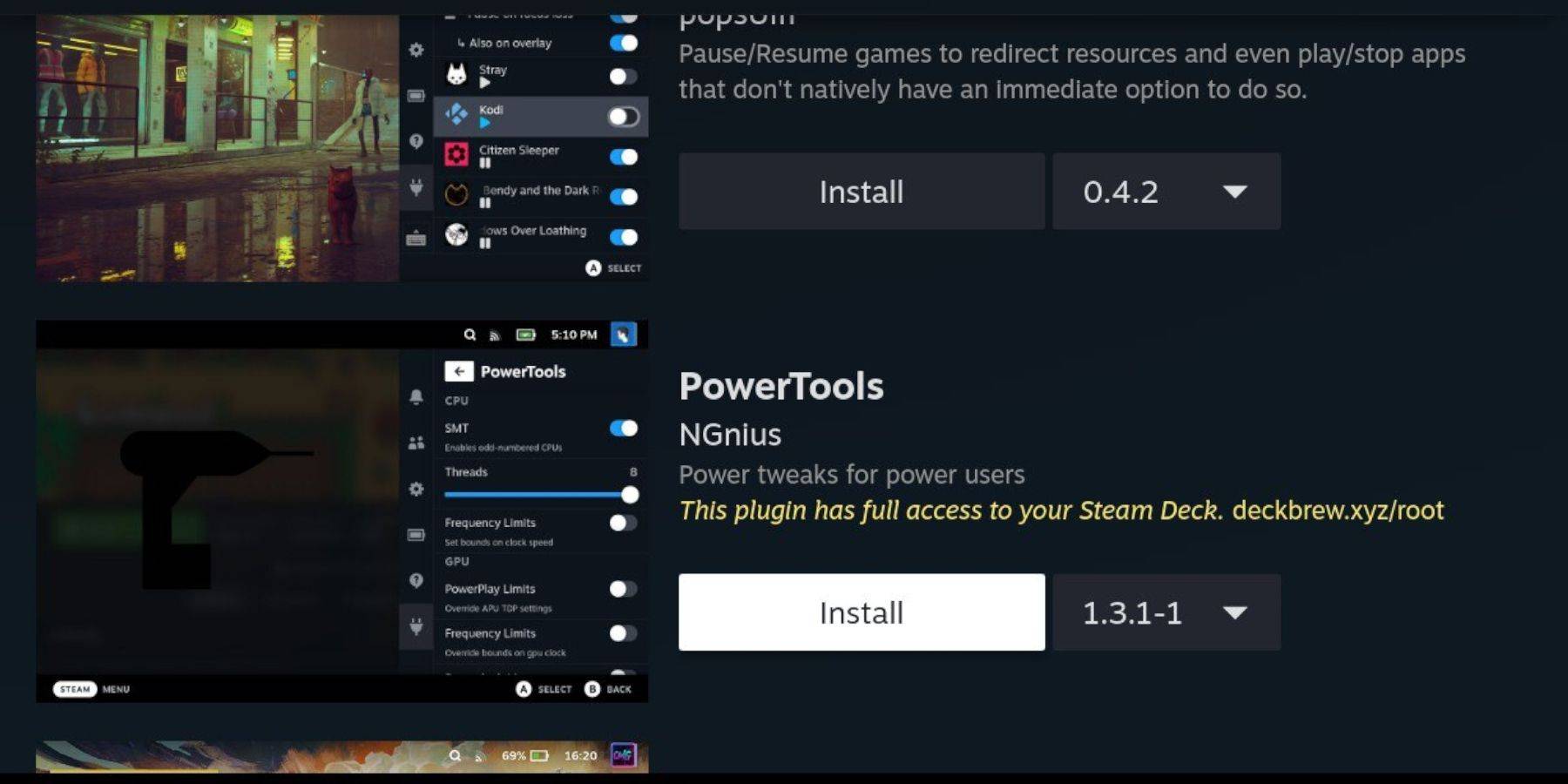 With Decky Loader installed, you can further enhance your Game Boy gaming experience by adding the Power Tools plugin and adjusting settings:
- In Gaming Mode, access the Quick Access Menu (QAM) and select the new plugin icon at the bottom of the side menu.
- Click the store icon next to the settings cogwheel to open the Decky Store.
- Use the search bar to find and install the Power Tools plugin, or scroll down to locate it.
Power Tools Settings For Emulated Games
- Press the Steam button to open the Library and launch a Game Boy game from the Collections tab or Non-Steam Library list.
- After launching the game, press the QAM button to access Decky Loader and select the Power Tools menu.
- Choose Turn off SMTs.
- Adjust the slider to set Threads to 4.
- Press the QAM again to access the Performance menu.
- In the Performance menu, enable Advanced View.
- Turn on Manual GPU Clock Control.
- Increase the GPU Clock Frequency to 1200.
- Enable the Per Game Profile feature to save customized settings for each game.
Restoring Decky Loader After A Steam Deck Update
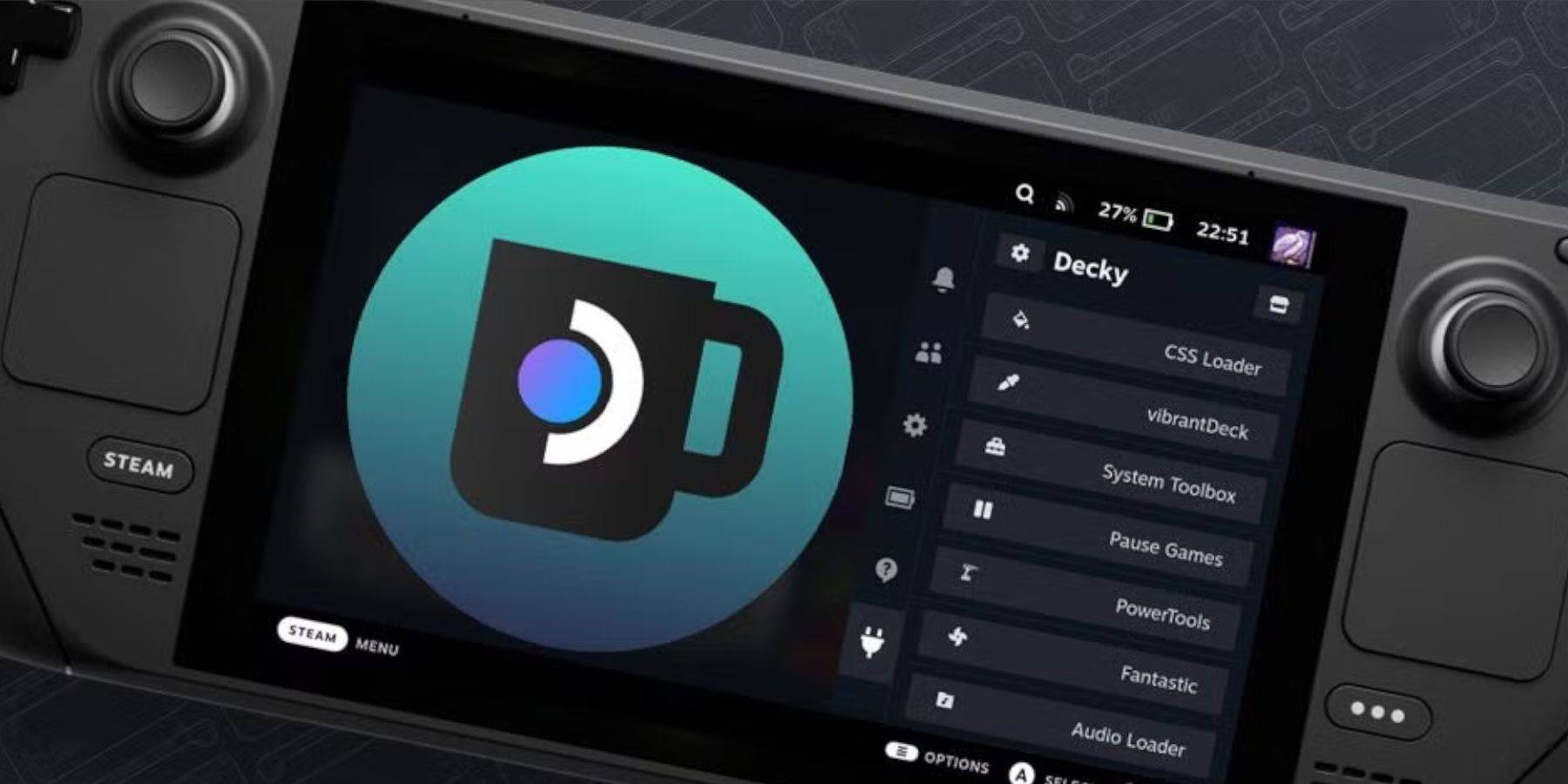 Major updates to the Steam Deck can significantly alter the user interface, potentially disrupting third-party apps like Decky Loader. Here's how to restore Decky Loader and its plugins, including Power Tools, after an update:
- Re-enter Desktop Mode by pressing the Steam button and selecting the Power menu.
- Once in Desktop Mode, launch a browser and return to the Decky Loader GitHub page.
- Click the Download button to start the download again.
- After downloading, select only the Execute option, avoiding Open.
- When prompted, enter your pseudo password in the pop-up box.
- If you haven't set a pseudo password yet, follow the onscreen steps to create one. (Choose a strong password for future unofficial app installations.)
- Restart your Steam Deck in Gaming Mode.
- To confirm that Decky Loader, its settings, and plugins are restored, press the QAM button to access your program. If a Steam Deck update ever removes your Decky software, repeat these steps.
With these steps, you're now equipped to enjoy Game Boy games on your Steam Deck, with the ability to customize settings to your preference. The larger screen of the Steam Deck makes it an ideal platform for reliving the classics.
 Rate NowYour comment has not been saved









- 1 Roblox Game Codes Updated: April 2025 May 13,2025
- 2 The Best Gaming PC of 2025: Top Prebuilt Desktops Mar 26,2025
- 3 Idle Heroes Team Compositions – January 2025 Mar 16,2025
- 4 Roblox Forsaken Characters Tier List [UPDATED] (2025) Apr 03,2025
- 5 Roblox: Warrior Cats: Ultimate Edition Codes (January 2025) Feb 12,2025
- 6 Tips to Conquer the Dragon Quest III: HD-2D Remake Feb 21,2025
- 7 Pokémon GO Fest 2025: Fest Dates, Locations, Details Revealed Feb 13,2025
- 8 Fortnite: Chapter 6 Season 1 NPC Locations Feb 13,2025





-
Unique Wallpaper Apps for Every Style
A total of 10
-
Top Beauty Trends for This Season
A total of 10
-
Ultimate Baseball Games for Android
A total of 10