Simple arithmetic in Minecraft: dividing the screen into parts
Remember those awesome days when cooperative gaming was still finding its feet, and voice chat wasn't the norm? We huddled around one TV, sharing a console and making memories. That magic is still possible! This guide shows you how to recreate that experience with split-screen Minecraft on your Xbox One or other console. Gather your friends, grab the snacks and drinks, and let's get started!
Table of Contents
- Important Details
- How to Play Split Screen in Minecraft?
- How to Play Minecraft from One Console?
- How to Play Minecraft Online with Split Screen?
Important Details
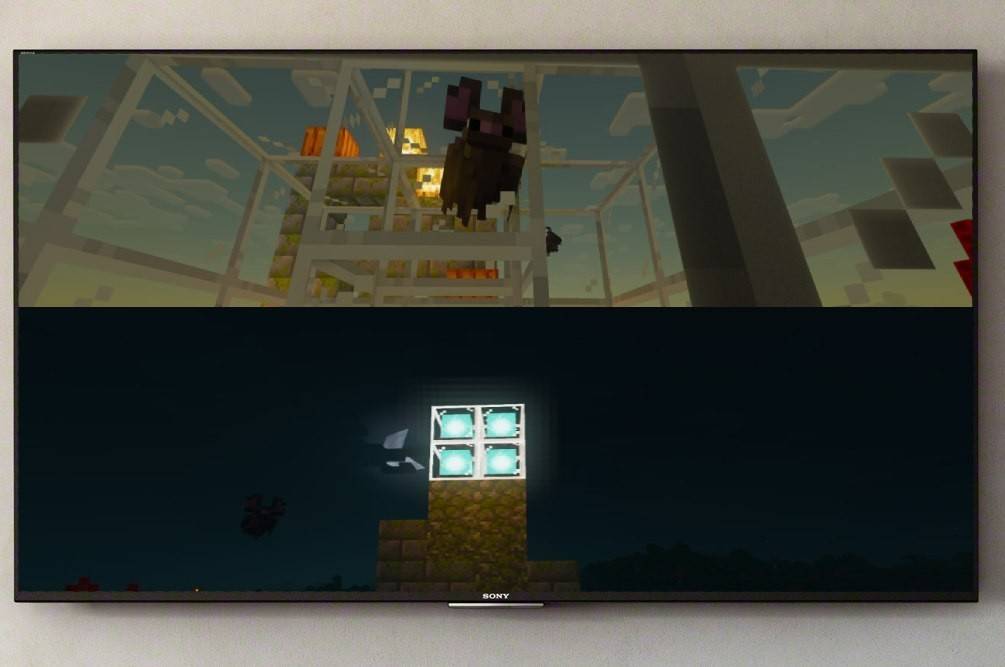
Before we dive in, let's address a few key points. Minecraft split-screen is a console-only feature; it's not available on PC. However, if you own an Xbox, PlayStation, or Nintendo Switch, you're in luck!
System requirements also play a role. While not overly demanding, you'll need an HD (720p) compatible TV or monitor, and your console must also support this resolution. With an HDMI connection, the resolution usually sets automatically. If using VGA, you may need to manually adjust the resolution in your console's settings.
How to Play Split Screen in Minecraft?
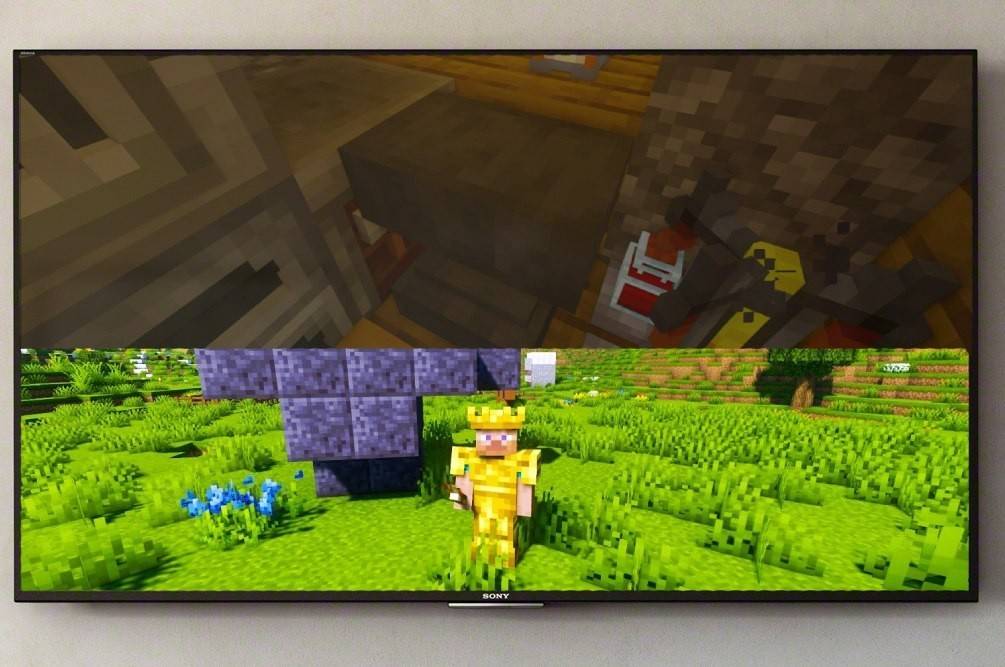
Minecraft offers both local and online split-screen options. Local split-screen lets you play directly from one console, while online allows you to invite additional players to a server.
How to Play Minecraft from One Console?
Local split-screen is perfect for a couch co-op experience. Up to four players can join the fun from a single console—just make sure nobody hogs the controllers! The exact steps may vary slightly depending on your console, but the general process remains consistent.
- Connect your console to your TV: An HDMI cable is recommended.
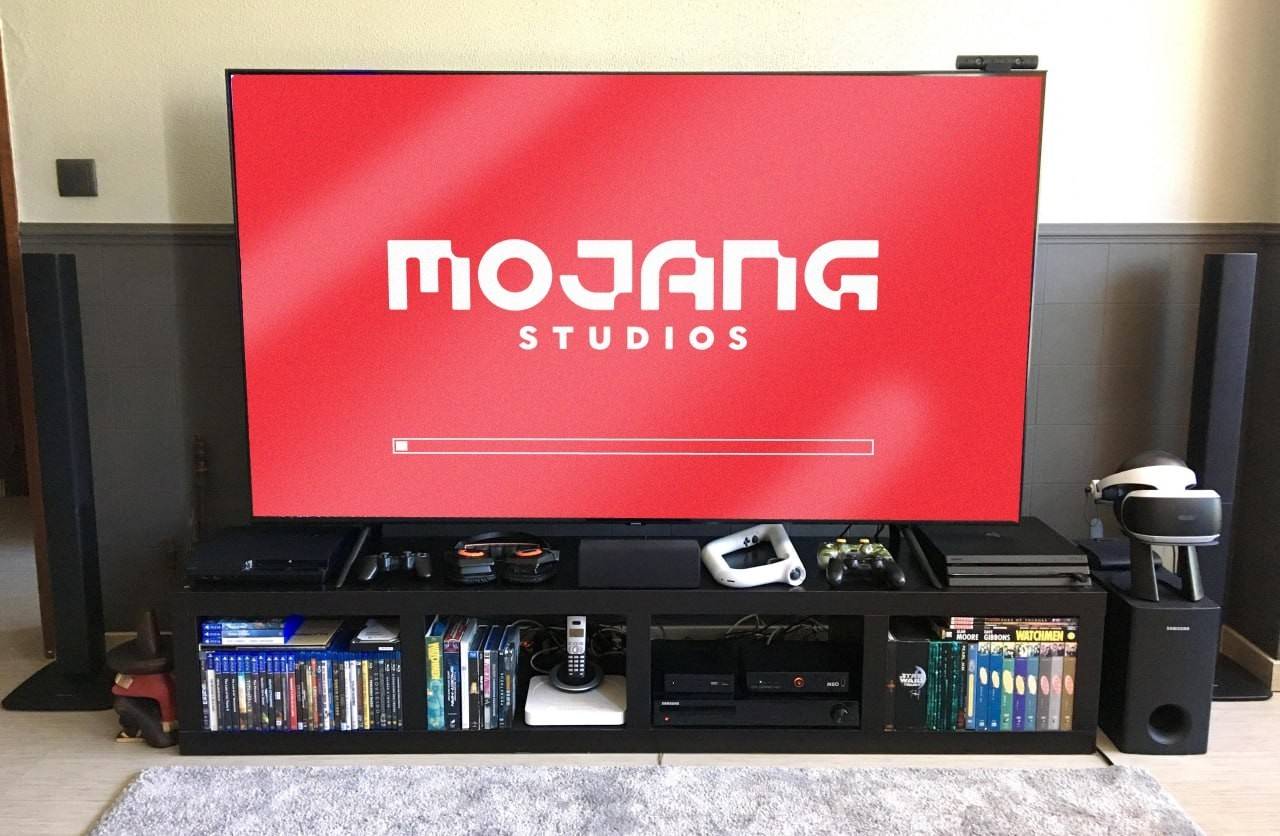
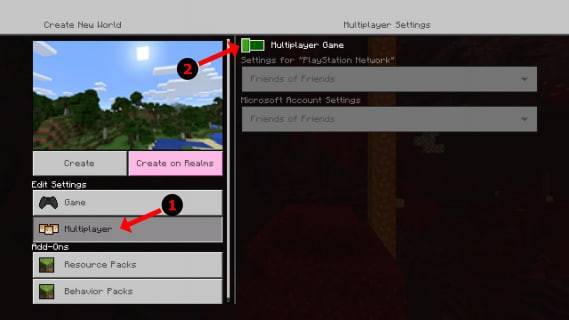
- Launch Minecraft: Create a new world or load an existing one. Crucially, disable multiplayer in the settings.
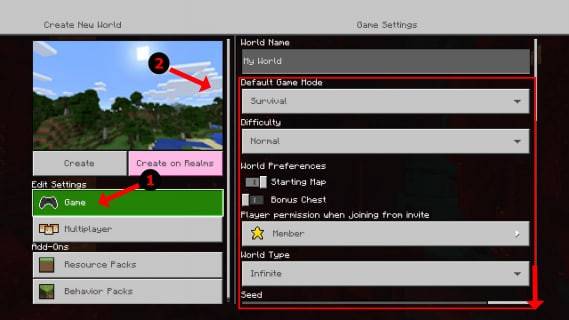
- Configure your world: Choose difficulty, settings, and world parameters. If using an existing world, skip this step.
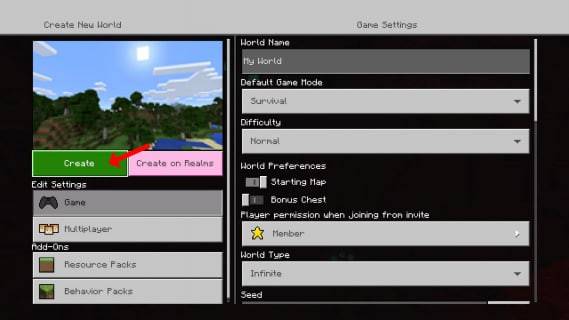
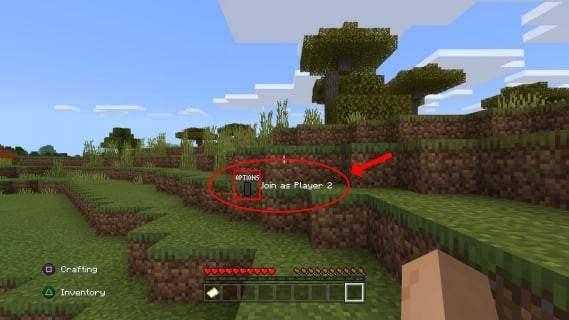
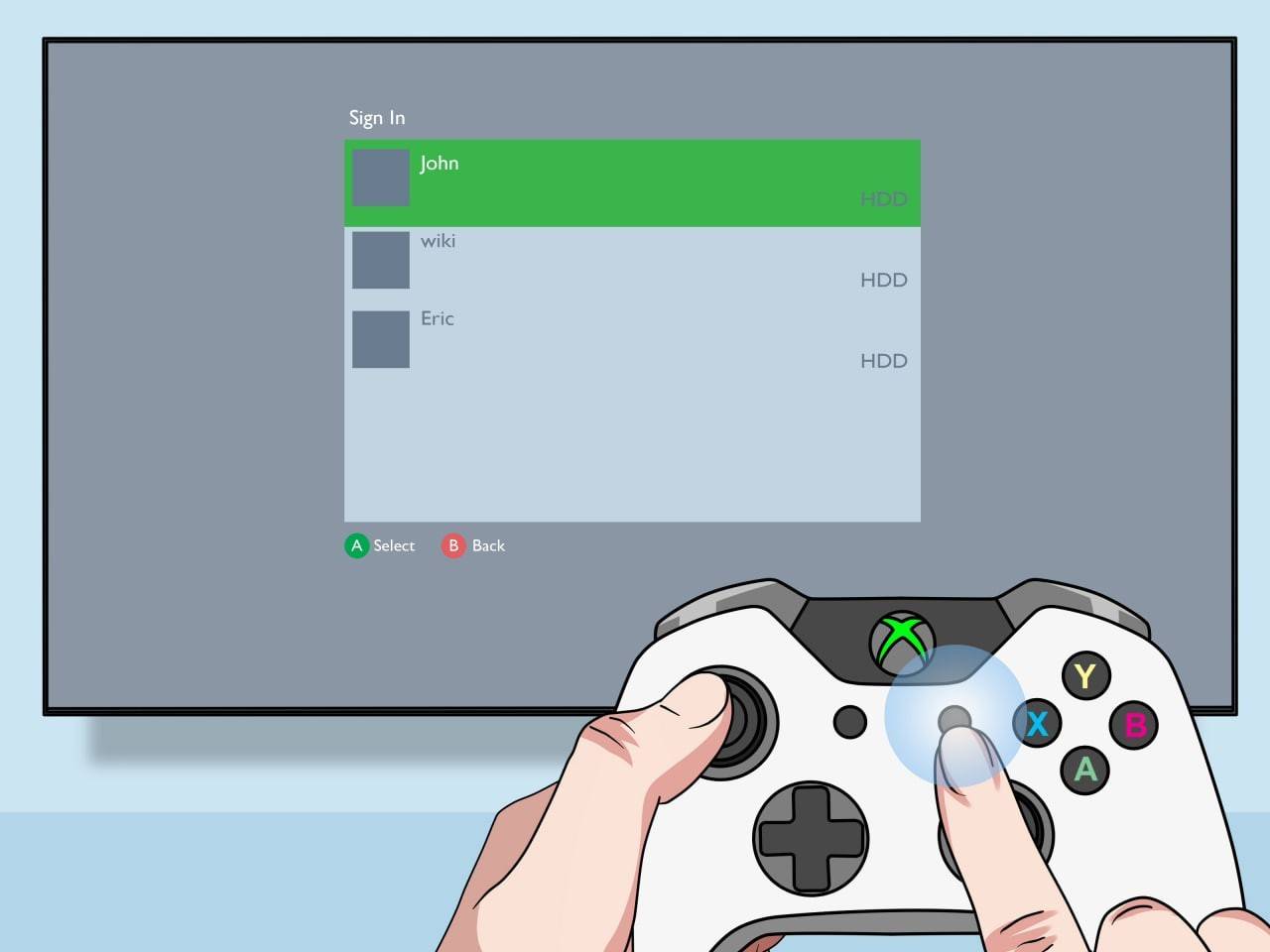
- Start the game: Once loaded, press the button to add players (usually "Options" on PlayStation or "Start" on Xbox—this might require two presses).
- Sign in and join: Each player logs into their account to join the game. The screen will automatically split into sections (2-4 players).
- Enjoy!
How to Play Minecraft Online with Split Screen?
While you can't directly split-screen with online players, you can combine local split-screen with online multiplayer. Play locally with friends on one console, and then invite additional online friends to join your world.
The process is similar to local split-screen, but enable multiplayer in the settings before starting. Once in-game, send invites to your online friends.
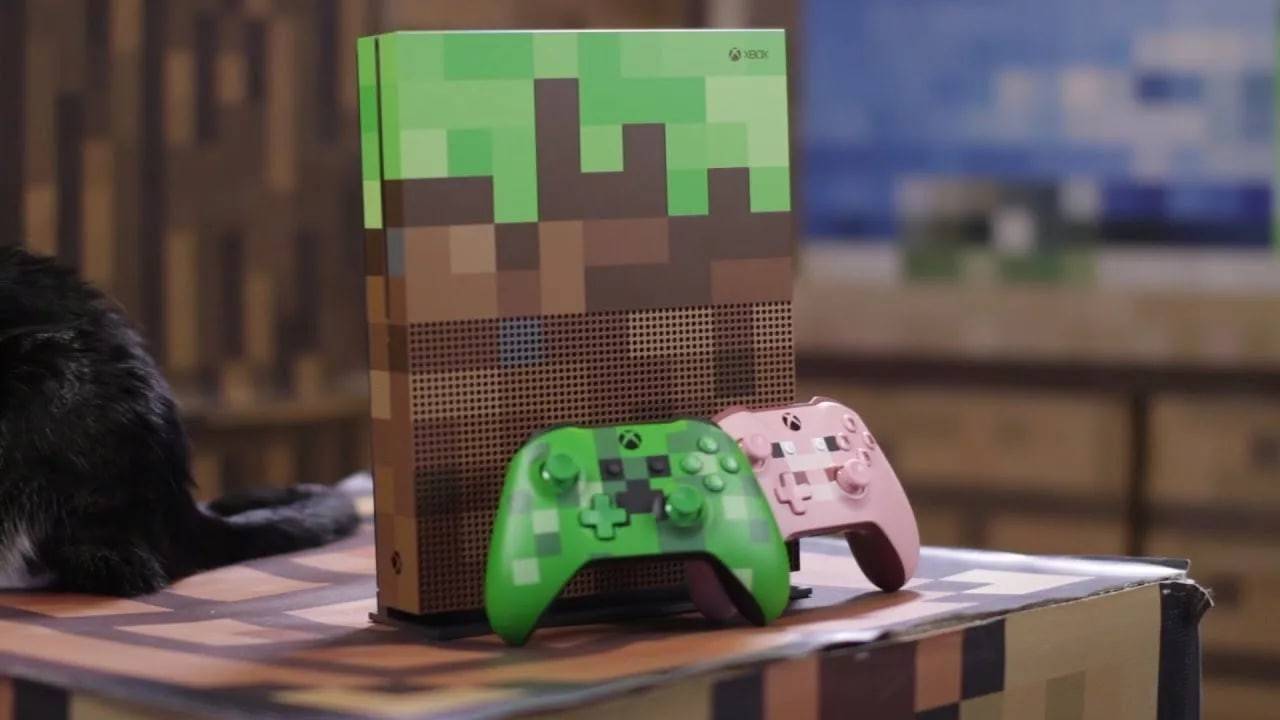
Minecraft's cooperative gameplay is fantastic, and sharing the experience with friends is even better. So gather your crew and enjoy the adventure!










- 1 Roblox Game Codes Updated: April 2025 May 13,2025
- 2 The Best Gaming PC of 2025: Top Prebuilt Desktops Mar 26,2025
- 3 Idle Heroes Team Compositions – January 2025 Mar 16,2025
- 4 Roblox Forsaken Characters Tier List [UPDATED] (2025) Apr 03,2025
- 5 Fortnite: Chapter 6 Season 1 NPC Locations Feb 13,2025
- 6 Tips to Conquer the Dragon Quest III: HD-2D Remake Feb 21,2025
- 7 Roblox: Warrior Cats: Ultimate Edition Codes (January 2025) Feb 12,2025
- 8 Pokémon GO Fest 2025: Fest Dates, Locations, Details Revealed Feb 13,2025


-
Unique Wallpaper Apps for Every Style
A total of 10
-
Top Beauty Trends for This Season
A total of 10
-
Ultimate Baseball Games for Android
A total of 10