PS5 Controller: Easy PC Pairing Guide
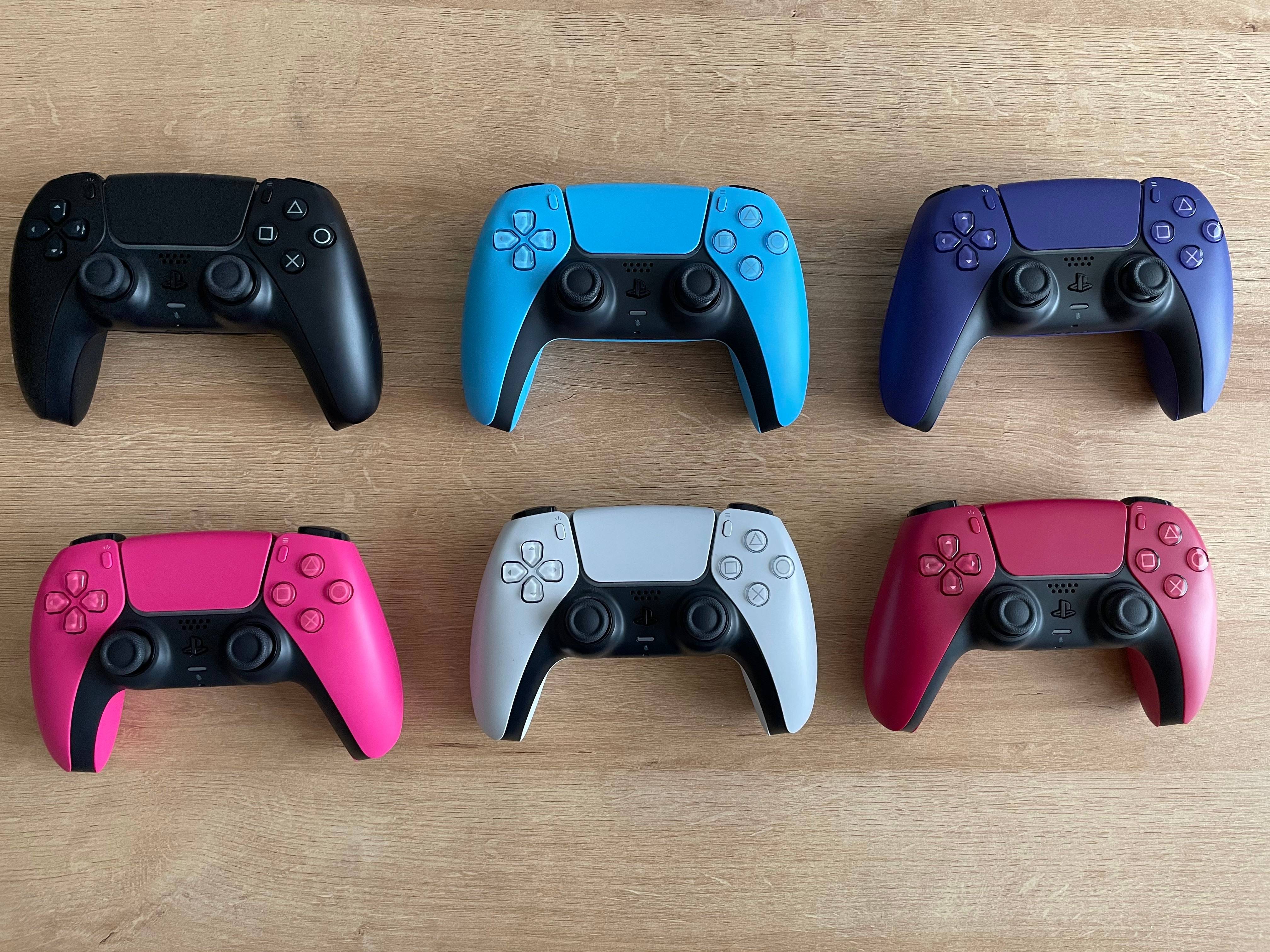
The Sony DualSense stands out as the best PS5 controller due to its innovative features, comfortable grip, and ergonomic design, enhancing your gaming experience on the PlayStation 5. While connecting the DualShock 4 to best gaming PCs was a challenge, the DualSense offers significantly better PC support, making it a top choice among the best PC controllers. Let's explore how straightforward it is to connect your DualSense to your PC.
Items Needed to Pair PS5 Controller with PC:
- Data-ready USB-C cable
- Bluetooth adapter for PC
Connecting your DualSense to a PC can be a bit tricky if you don't have the right equipment. The DualSense doesn't include a USB cable when purchased separately, and not all PCs come equipped with Bluetooth. To successfully pair your DualSense with a PC, you'll need a USB-C cable that supports data transfer—beware, some budget cables only provide power. You can use a C-to-C cable if your PC has a USB-C port, or a USB-C-to-A cable for traditional rectangular USB ports.
If your PC lacks Bluetooth, don't worry; adding it is simple. The market offers various Bluetooth adapters, from those that fit into a PCIe slot to those that just need a free USB port.
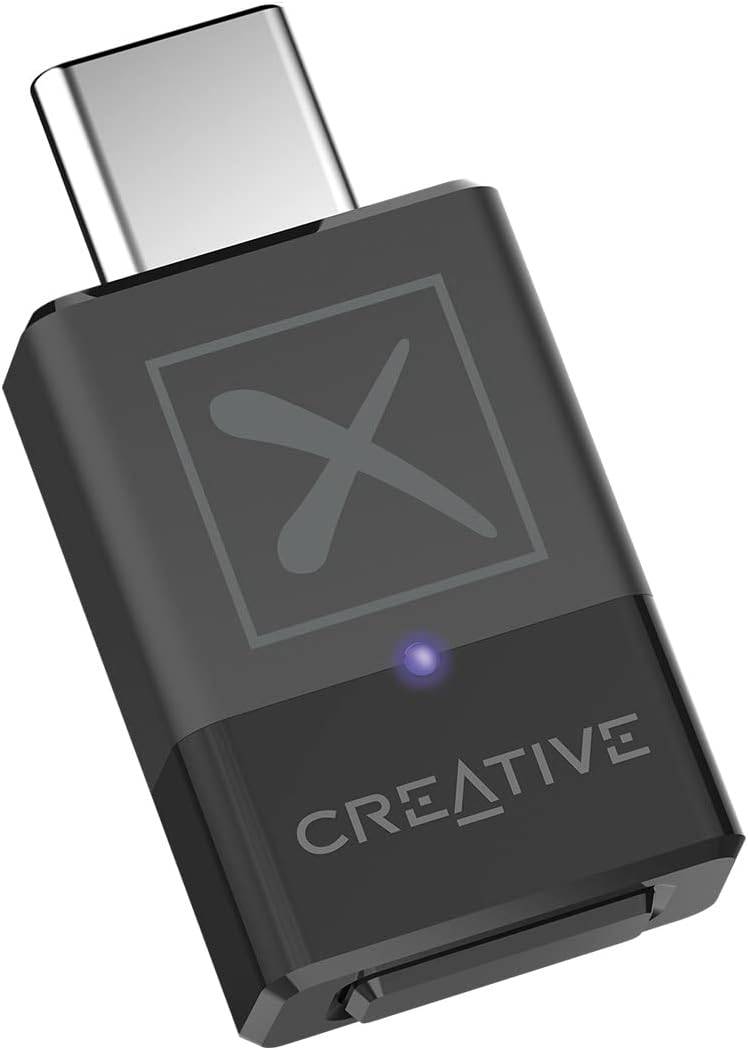
Our Top Pick: Creative BT-W5 Bluetooth Transmitter
See it at Amazon
How to Pair the PS5 Controller to PC over USB:
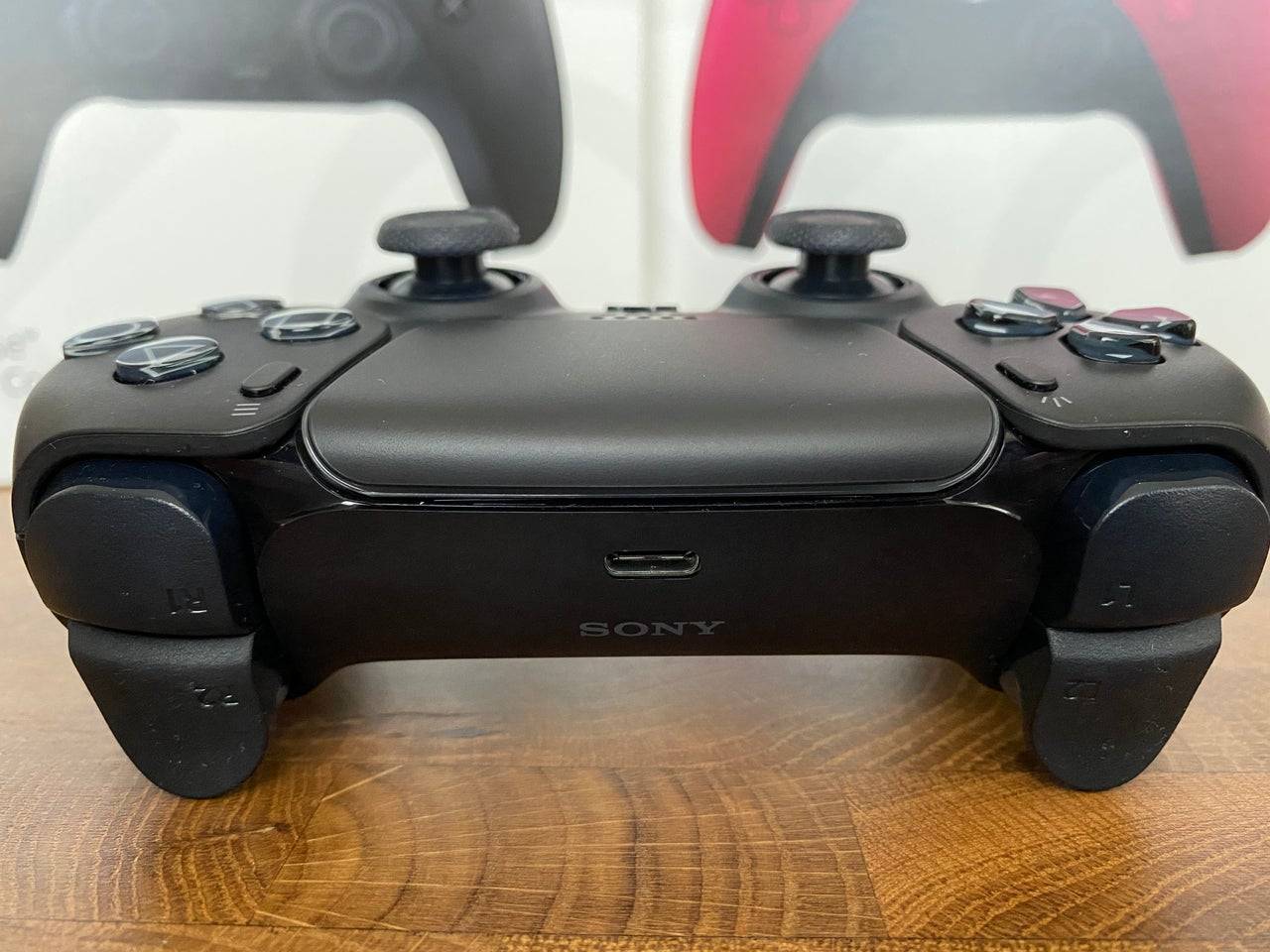
- Plug your selected USB cable into an open port on your PC.
- Connect the other end of the cable into the USB-C port on your DualSense controller.
- Wait for your Windows PC to recognize the DualSense controller as a gamepad.
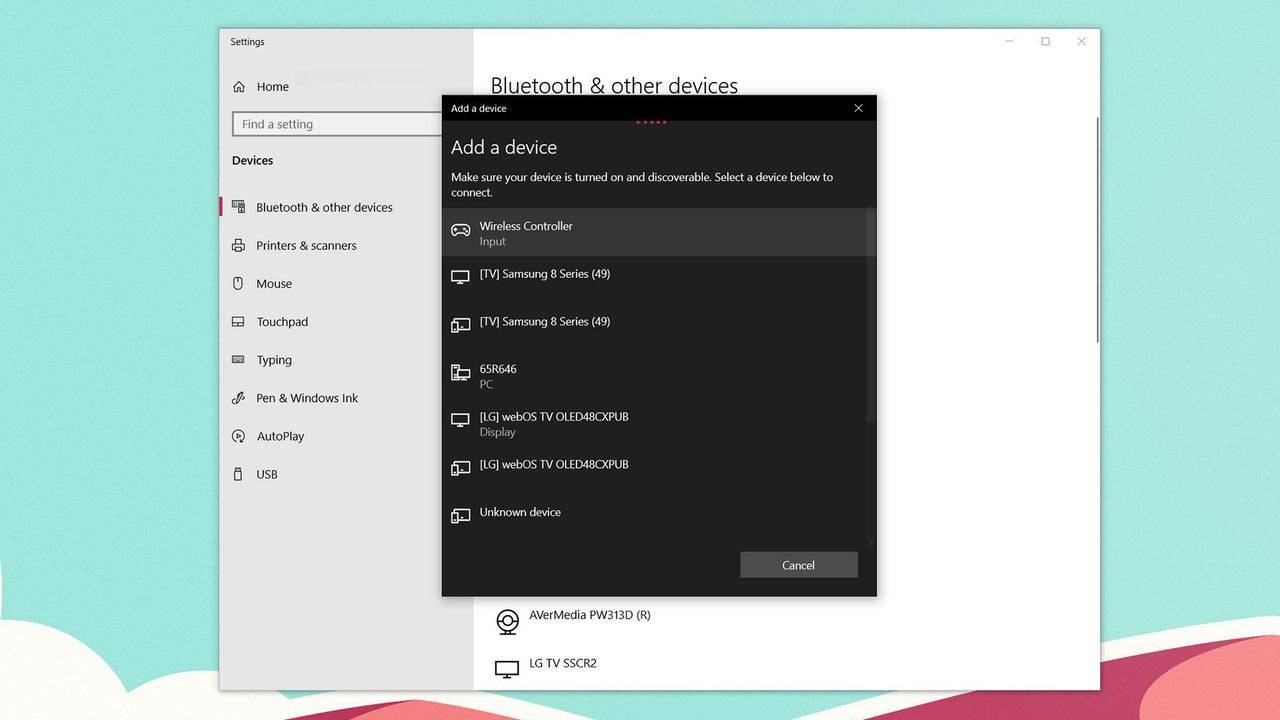
How to Pair the PS5 DualSense Controller to PC over Bluetooth:
- Access your PC’s Bluetooth settings by pressing the Windows key, typing “Bluetooth”, and selecting Bluetooth & other devices from the menu.
- Choose Add Bluetooth or other device.
- Select Bluetooth in the pop-up window.
- On your DualSense controller (ensure it's disconnected and powered off), press and hold the PS Button and Create button (next to the D-Pad) simultaneously until the light bar under the touchpad starts blinking.
- On your PC, select your DualSense controller from the list of available Bluetooth devices.








- 1 Roblox Game Codes Updated: April 2025 May 13,2025
- 2 The Best Gaming PC of 2025: Top Prebuilt Desktops Mar 26,2025
- 3 Idle Heroes Team Compositions – January 2025 Mar 16,2025
- 4 Roblox Forsaken Characters Tier List [UPDATED] (2025) Apr 03,2025
- 5 Roblox: Warrior Cats: Ultimate Edition Codes (January 2025) Feb 12,2025
- 6 Tips to Conquer the Dragon Quest III: HD-2D Remake Feb 21,2025
- 7 Pokémon GO Fest 2025: Fest Dates, Locations, Details Revealed Feb 13,2025
- 8 Fortnite: Chapter 6 Season 1 NPC Locations Feb 13,2025





-
Unique Wallpaper Apps for Every Style
A total of 10
-
Top Beauty Trends for This Season
A total of 10
-
Ultimate Baseball Games for Android
A total of 10