How to Connect Your PlayStation VR2 Headset to a PC: Step-by-Step Guide
If you've been eagerly waiting to connect your PlayStation VR2 to a gaming PC and immerse yourself in the vast world of SteamVR games, you're in for a treat. Sony has launched a $60 adapter that bridges this gap, allowing PS VR2 owners to enjoy their headset with any modern gaming PC that meets the necessary specifications. However, using the adapter isn't as straightforward as a simple plug-and-play solution. Despite its marketed ease of use, certain features may require additional setup depending on your PC's configuration.
How to Connect to Your PC With the Adapter
Before jumping into the setup process, ensure you have all the required components. The PS VR2, with the adapter, is compatible with most SteamVR games, but you'll need to confirm your PC has Bluetooth 4.0 connectivity, a DisplayPort 1.4 cable, a nearby AC power outlet, and the PlayStation VR2 and SteamVR apps installed on Steam. Additionally, the Sense controllers included with the PS VR2 charge via USB-C, so you'll need two USB-C ports and cables, or consider purchasing Sony's $50 Sense controller charging station for a more convenient charging solution.
What You'll Need
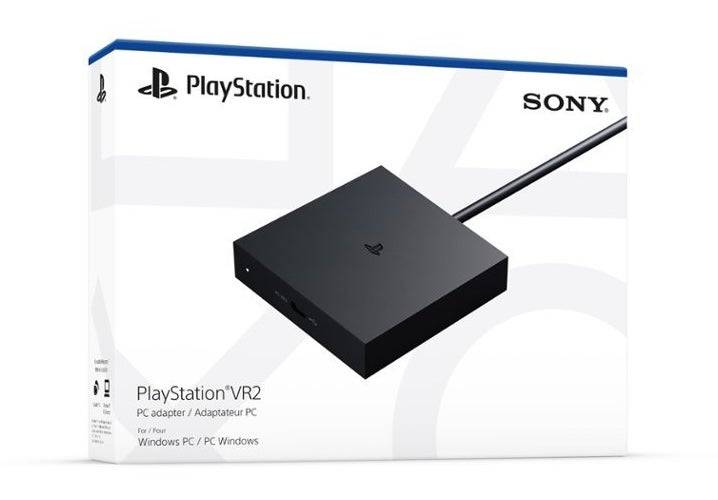
Before diving in, check if your gaming PC is compatible with the PlayStation VR2 headset by visiting Sony's official PS VR2 PC Adapter preparation page. If your system checks out, here's a list of everything you'll need:
- A PlayStation VR2 headset
- The PlayStation VR2 PC adapter (includes AC adapter and male USB 3.0 Type-A cable)
- A DisplayPort 1.4 cable (sold separately)
- A free USB 3.0 Type-A port on your PC (Sony advises against using extension cables or external hubs, though a powered external hub was successfully used in our review)
- Bluetooth 4.0 capability on your PC (either built-in or via an external Bluetooth adapter)
- Steam and SteamVR installed on your PC
- The PlayStation VR2 app installed within Steam
How to Connect: Step-by-Step Instructions
Once you've gathered all the necessary components, follow these steps to connect your PS VR2 to your PC:
- Install SteamVR and the PlayStation VR2 app:
- Download and install the Steam Windows client if you haven't already.
- Open Steam and install the SteamVR app.
- Download and install the PlayStation VR2 app.
- Set up your PC's Bluetooth and pair your Sense Controllers:
- From your PC's start menu, navigate to Settings > Bluetooth & devices > toggle Bluetooth to "On."
- To pair your Sense controllers, hold down the PlayStation button and Create button on each controller until the white light at the bottom starts blinking.
- On your PC's Bluetooth & devices page, click "Add device" next to "Devices," select "Bluetooth," and search for PlayStation VR2 Sense Controller (L) and (R) to connect both devices.
- If your PC lacks built-in Bluetooth 4.0 or higher, use a compatible Bluetooth adapter like the Asus BT500.
- For systems with an internal Bluetooth radio and an external adapter, disable the internal Bluetooth driver via Device Manager: right-click the driver under the Bluetooth tab and select "Disable device."
- Set up the adapter and connect it to your PC:
- Plug the PS VR2 adapter into an unused USB 3.0 Type-A port on your PC.
- Connect the adapter to a free DisplayPort slot on your GPU using a DisplayPort 1.4 cable.
- Connect the AC power adapter to the PS VR2 adapter’s DC IN connector and plug it into an electrical outlet.
- Connect the PlayStation VR2 to the PC adapter via the USB-C port on the front of the adapter.
- Turn off Hardware-accelerated GPU scheduling (optional):
- If your PC has a newer GPU like a 40-series Nvidia RTX card, disable Hardware-accelerated GPU scheduling for a stable VR experience: navigate to Settings > System > Display > Graphics, click "Default graphics settings," and turn off the "Hardware-accelerated GPU scheduling" slider. Restart your PC.
- Launch the PlayStation VR2 App and SteamVR:
- Boot up the PlayStation VR2 headset by holding down the central button until it rumbles.
- Turn on SteamVR and set it as your default OpenXR runtime.
- Open the PlayStation VR2 app from your desktop to update your Sense controllers' firmware and set up your PS VR2 headset, including your Play Area and other preferences.
- Follow the on-screen and in-headset instructions to set up your IPD, display distance, and adjust the headset's fit.
- Once setup is complete, you're ready to explore SteamVR games!
Can You Connect to PC Without an Adapter?
Currently, connecting the PS VR2 to a PC without the adapter is not officially supported. However, according to Road to VR, some GPUs from around 2018 with a USB-C port and VirtualLink feature might allow a direct connection to the PS VR2, provided the PlayStation VR2 app is installed. This method bypasses the need for the adapter, but it's not universally supported and may require additional configuration.









- 1 Roblox Game Codes Updated: April 2025 May 13,2025
- 2 The Best Gaming PC of 2025: Top Prebuilt Desktops Mar 26,2025
- 3 Roblox Forsaken Characters Tier List [UPDATED] (2025) Apr 03,2025
- 4 Idle Heroes Team Compositions – January 2025 Mar 16,2025
- 5 Roblox: Warrior Cats: Ultimate Edition Codes (January 2025) Feb 12,2025
- 6 Fortnite: Chapter 6 Season 1 NPC Locations Feb 13,2025
- 7 Pokémon GO Fest 2025: Fest Dates, Locations, Details Revealed Feb 13,2025
- 8 Tips to Conquer the Dragon Quest III: HD-2D Remake Feb 21,2025





-
Unique Wallpaper Apps for Every Style
A total of 10
-
Top Beauty Trends for This Season
A total of 10
-
Top Free Shooting Games on Google Play
A total of 10