Steam Deck: Play Sega Master System Classics
Quick Links
The Sega Master System, an 8-bit rival to the NES, boasted a fantastic library of games, many exclusive or featuring unique versions not found elsewhere. Standout titles included exceptional ports and versions of classics like Golden Axe, Double Dragon, and Streets of Rage. The console even surprised with titles like Mortal Kombat and Asterix & Obelix, which pushed the system's capabilities closer to the 16-bit Mega Drive/Genesis games of the time.
Retro gaming enthusiasts often face challenges playing Sega Master System games on modern systems. However, the Steam Deck, combined with the powerful EmuDeck program, makes this remarkably easy. This guide details how to install the necessary emulators for Sega Master System games on your Steam Deck.
Updated January 15, 2024, by Michael Llewellyn: While the Steam Deck's power easily handles Sega Master System games, replicating the original console's performance can be tricky. This is where Decky Loader and the Power Tools plugin come in—recommended by EmuDeck developers for optimal retro gaming. This guide has been updated to include their installation and how to fix issues after a Steam Deck update.
Before Installing EmuDeck
 Before installing EmuDeck on your Steam Deck for Sega Master System games, ensure you have these essentials:
- A fully charged Steam Deck or one connected to power.
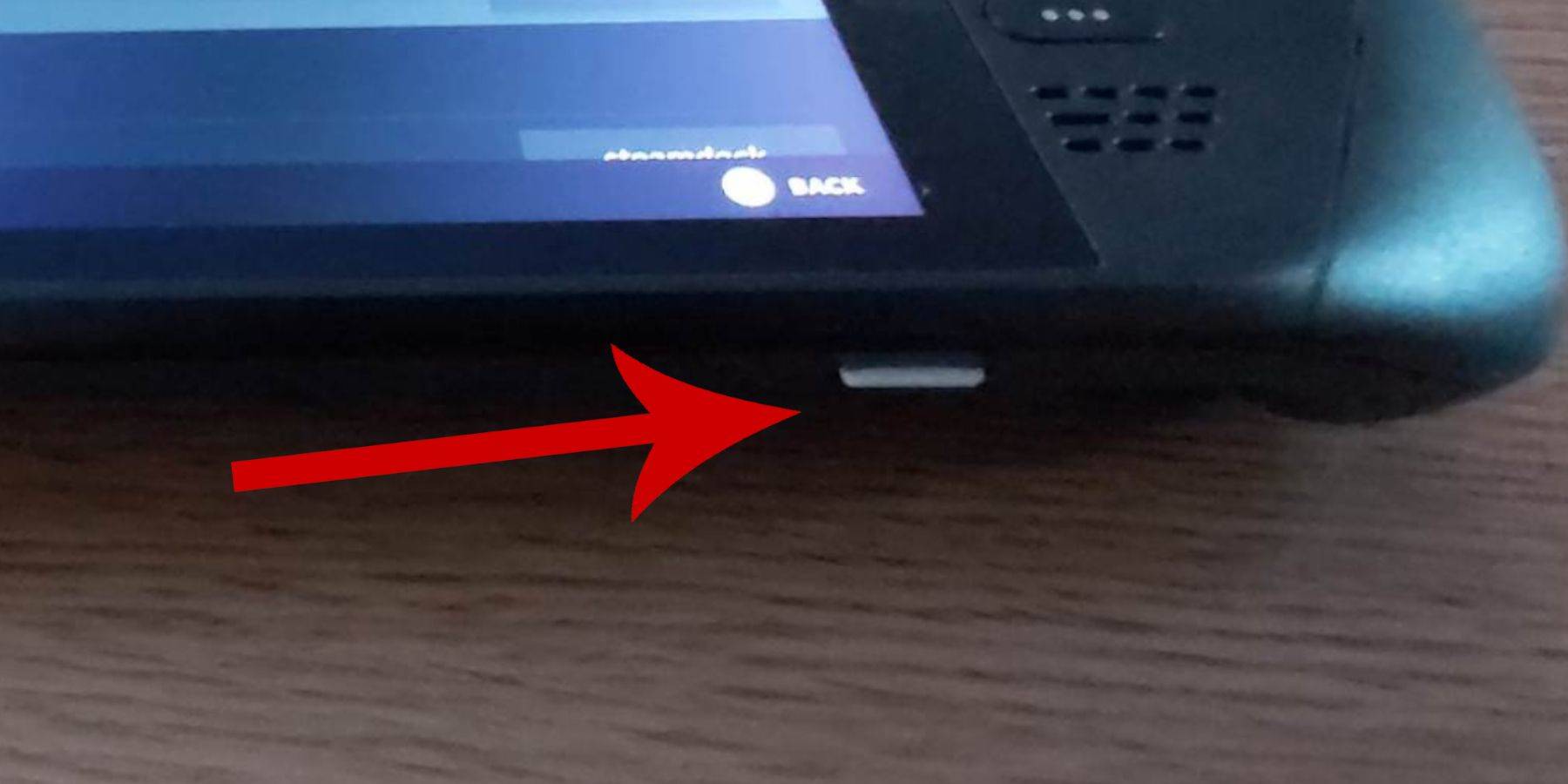
- A high-speed microSD card (formatted on the Steam Deck) or an external HDD (note: using an HDD reduces portability).
- A keyboard and mouse (optional, but recommended for easier file transfers and installation). If using the Steam Deck's built-in controls, press Steam + X to access the on-screen keyboard.
Activate Developer Mode
Before installing emulators, activate Developer Mode for smooth operation:
- Press the Steam button to open the left-hand menu.
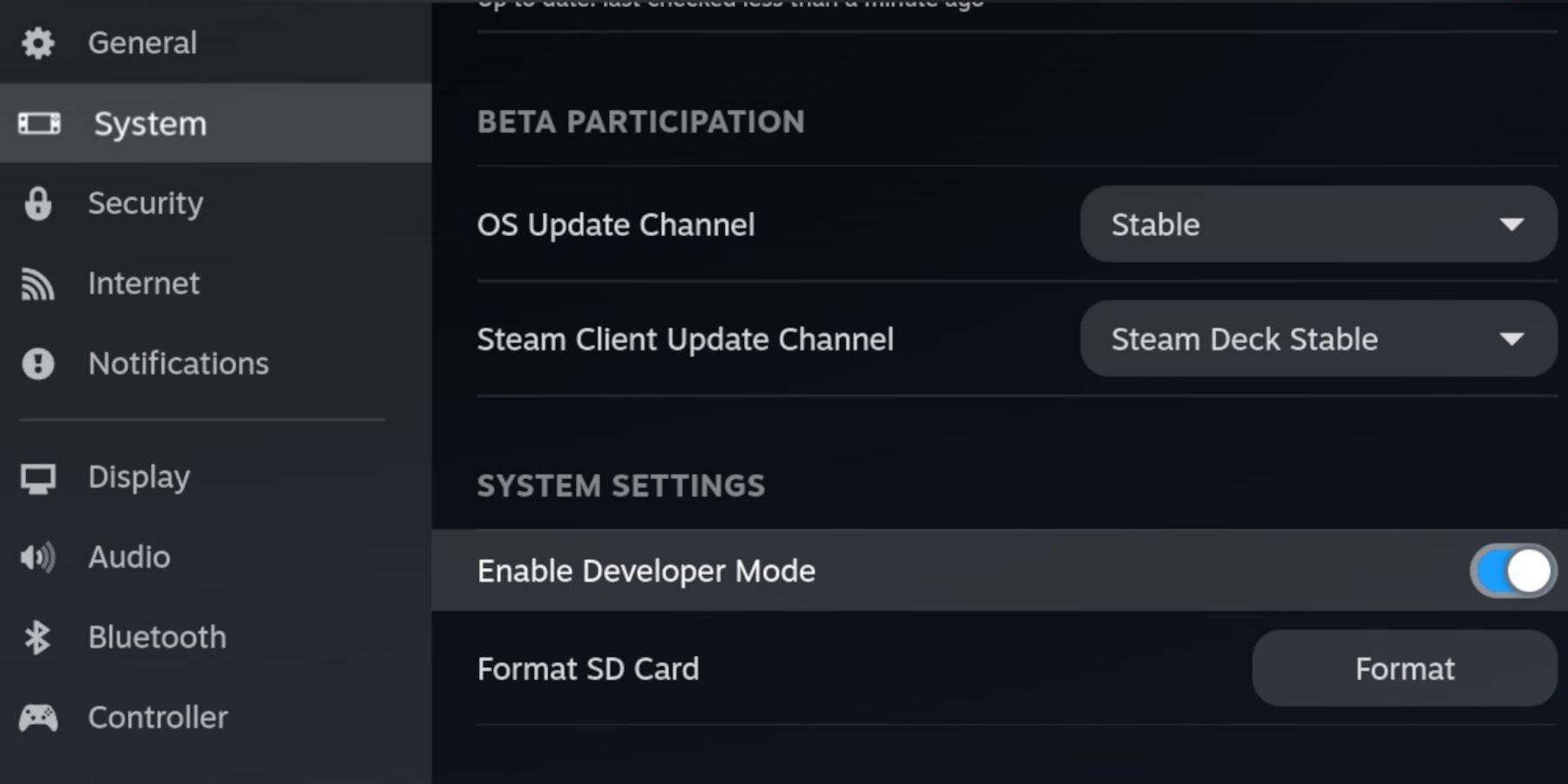
- Go to System > System Settings.
- Enable Developer Mode.
 - Access the Developer menu (at the bottom of the left-hand menu).
- Under Miscellaneous, enable CEF Remote Debugging.
- Press the Steam button.
- Power > Restart the Steam Deck.
Remember to check CEF Remote Debugging after updates, as it can be disabled, affecting plugins and emulators.
Installing EmuDeck In Desktop Mode
 - Press the Steam button, select Power, and switch to Desktop Mode.
- Use a browser (Chrome, Firefox, etc.) to download EmuDeck.
- Choose your SteamOS version and download. After downloading, double-click the installer and follow the instructions, choosing Custom Install.
- Select the SD card (it will be renamed "Primary" for easier identification in Dolphin File Manager).
- Choose your emulators (you can select just RetroArch for Sega Master System).
RetroArch runs various emulators through a single application, accessible under the 'Emulators' tab in your Steam library.
- Select Steam Rom Manager with RetroArch to display games in your Steam library.
- Consider enabling 'Configure CRT Shader for Classic 3D Games' for that retro look.
- Select Finish.
Transferring Master System ROMs
With EmuDeck and RetroArch installed, transfer your Sega Master System ROMs:
- Open Dolphin File Manager.
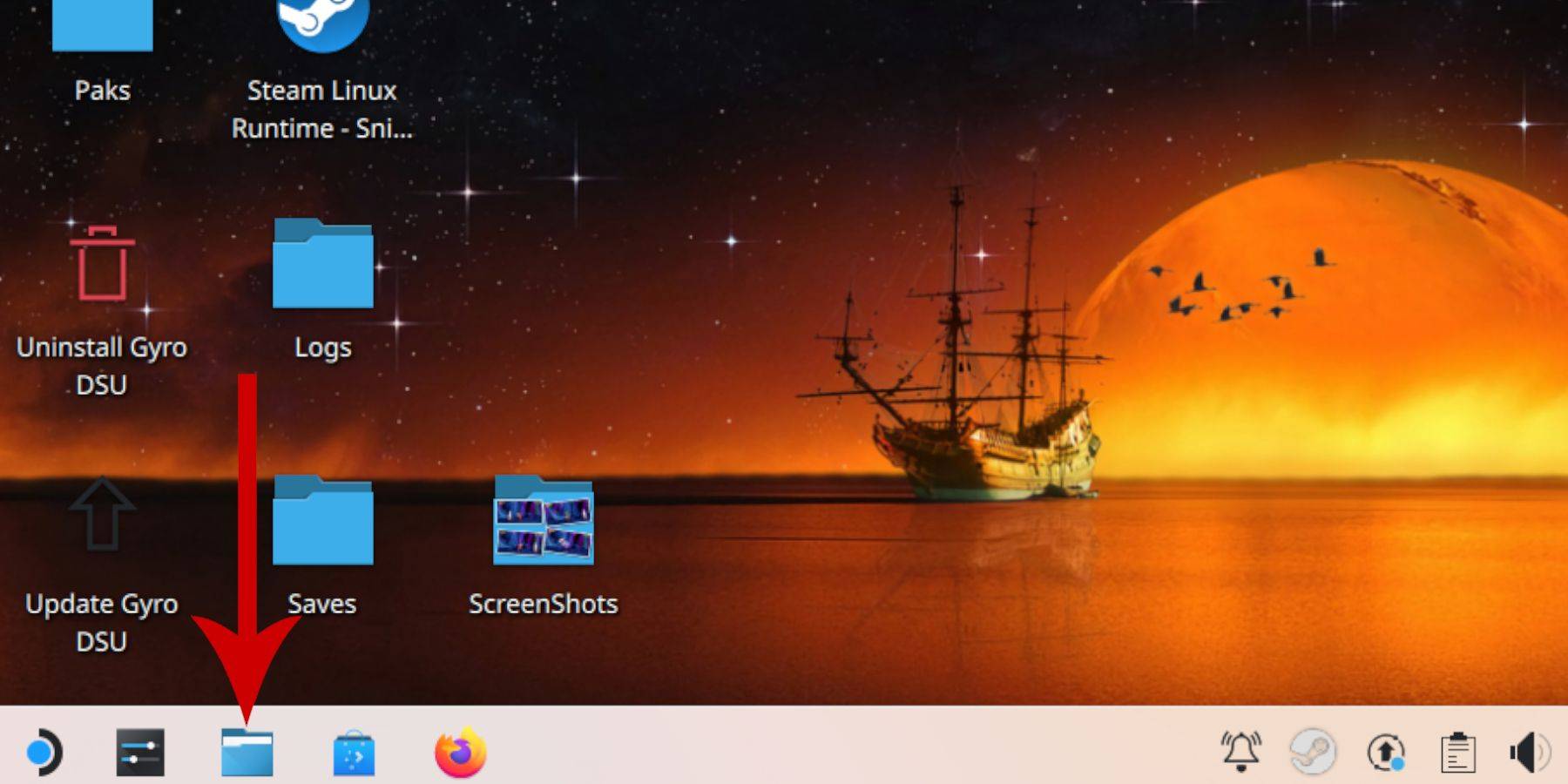 - Go to Removable Devices > Primary (your SD card).
- Navigate to Emulation > ROMs > mastersystem.
- Copy your Sega Master System ROMs (
.smsfiles). Ignore the 'media' file.
Adding Master System Games To The Steam Library
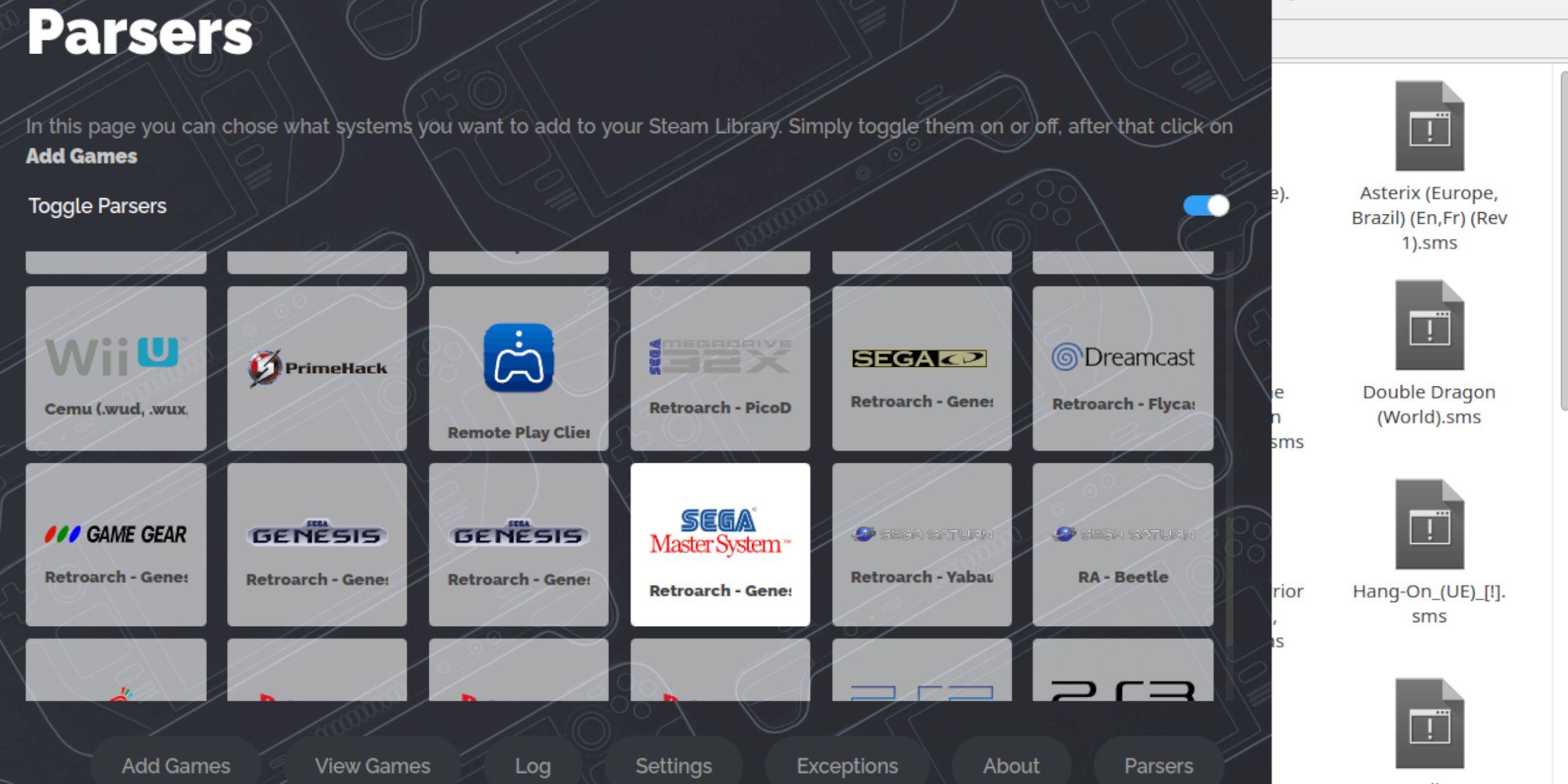 While playable in Desktop Mode, add your games to your Steam Library for Gaming Mode access:
- Open EmuDeck in Desktop Mode.
- Open Steam Rom Manager.
- Click Next.
- Turn off Parsers, except for Sega Master System.
- Select Add Games > Parse.
- Check artwork and select Save to Steam.
Fix Or Upload Missing Artwork
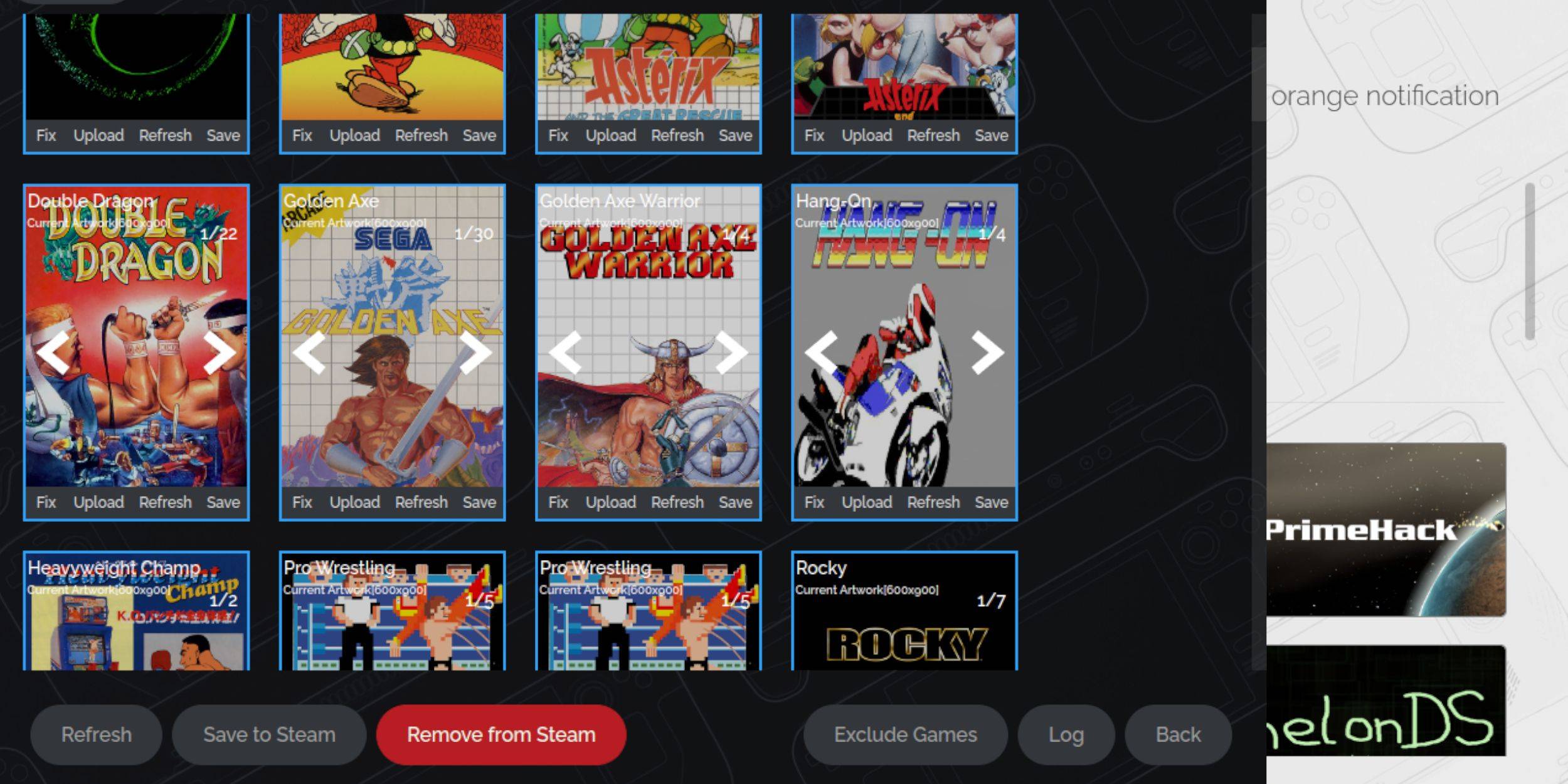 Missing or incorrect artwork is common with retro games.
- Click Fix on the cover frame. Steam ROM Manager usually finds artwork; otherwise, search manually.
- Select the correct artwork and Save.
Upload Missing Artwork
If Steam ROM Manager can't find artwork:
- Download the artwork and save it to the Steam Deck's Pictures folder.
- Click Upload, select the artwork, and Save.
- If needed, use the left/right arrows to locate the image, then Save to Steam.
Playing Master System Games On The Steam Deck
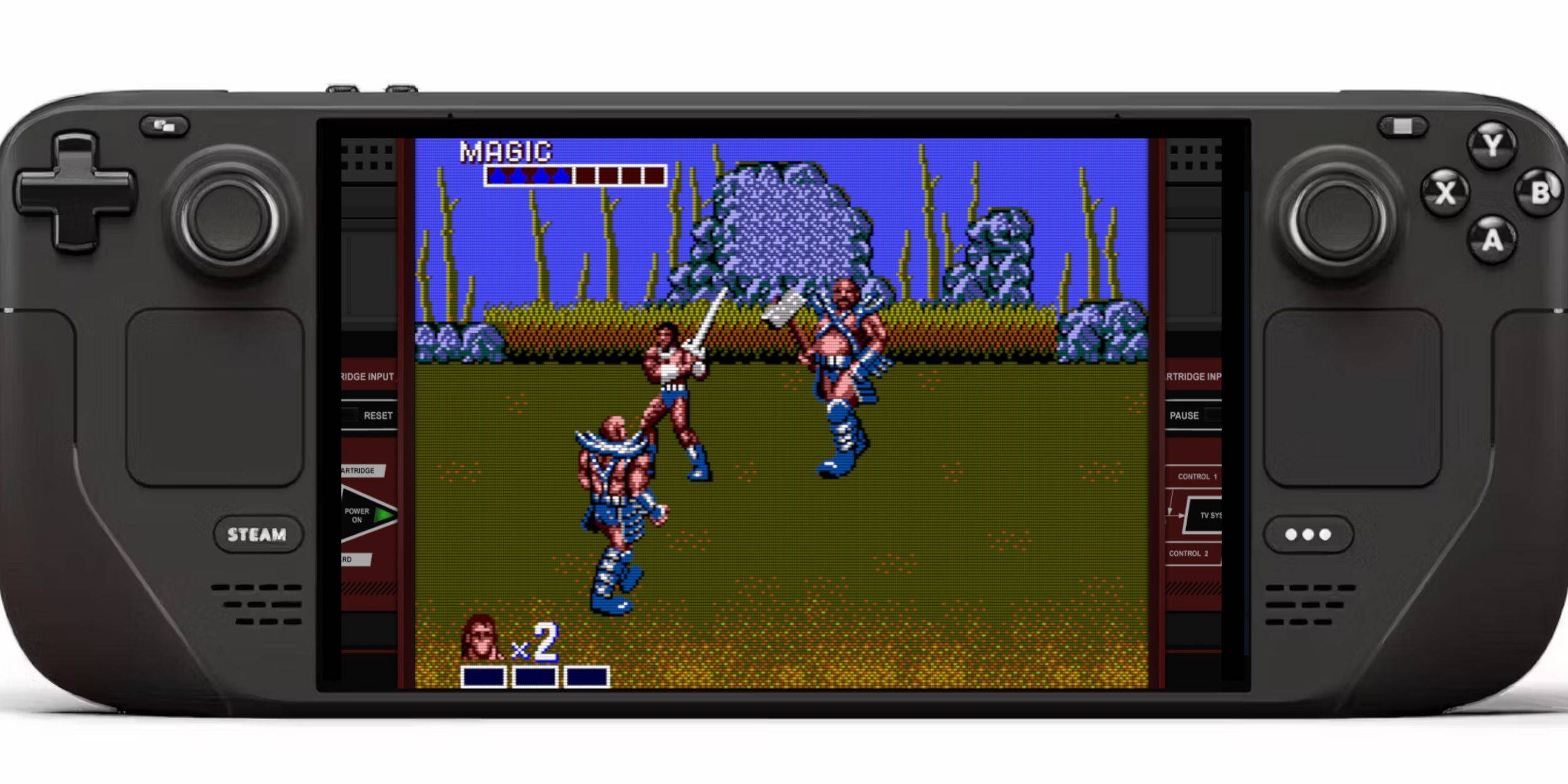 After adding games to your Steam Library:
- In Gaming Mode, press the Steam button.
- Select Library > Collections > Sega Master System.
- Choose your game and play!
Improve Performance
Address potential stuttering:
- Open a game, press the QAM button.
- Go to Performance.
- Enable 'Use game profile'.
- Set Frame Limit to 60 FPS.
- Enable Half Rate Shading.
Install Decky Loader For The Steam Deck
 EmuDeck recommends Decky Loader and Power Tools for enhanced control:
- Connect a keyboard and mouse (optional). Switch to Desktop Mode.
- Download Decky Loader from its GitHub page.
- Double-click the launcher and choose Recommended Install.
- Restart in Gaming Mode.
Install Power Tools
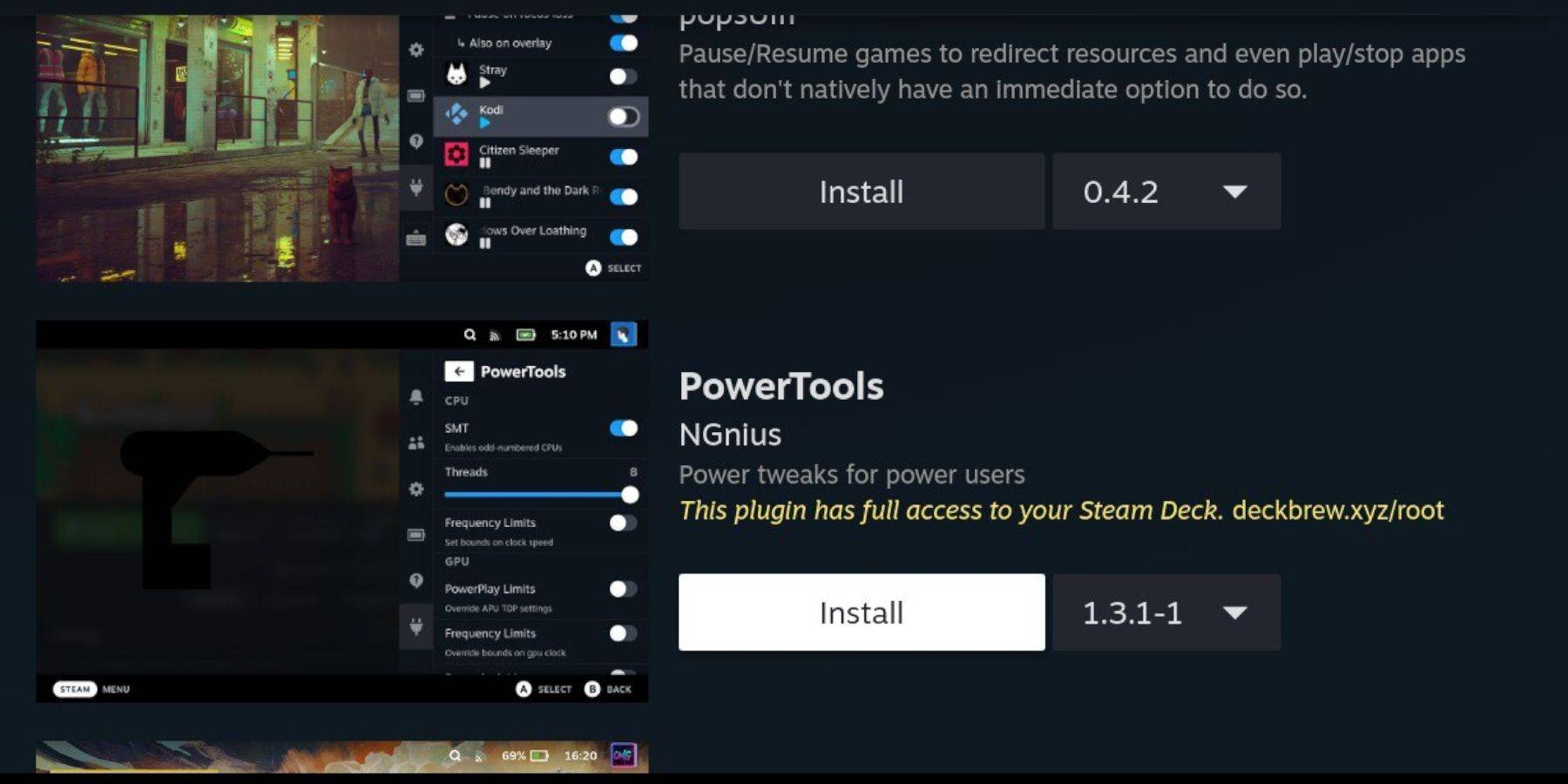 - Press the QAM button.
- Select the new plugin icon > Decky Store.
- Install Power Tools.
Power Tools Settings For Emulated Games
- Launch a game.
- Press QAM > Decky Loader > Power Tools.
- Turn off SMTs.
- Set Threads to 4.
- Press QAM > Performance > Advance View.
- Enable Manual GPU Clock Control.
- Set GPU Clock Frequency to 1200.
- Select Per Game Profile to save settings.
Fixing Decky Loader After A Steam Deck Update
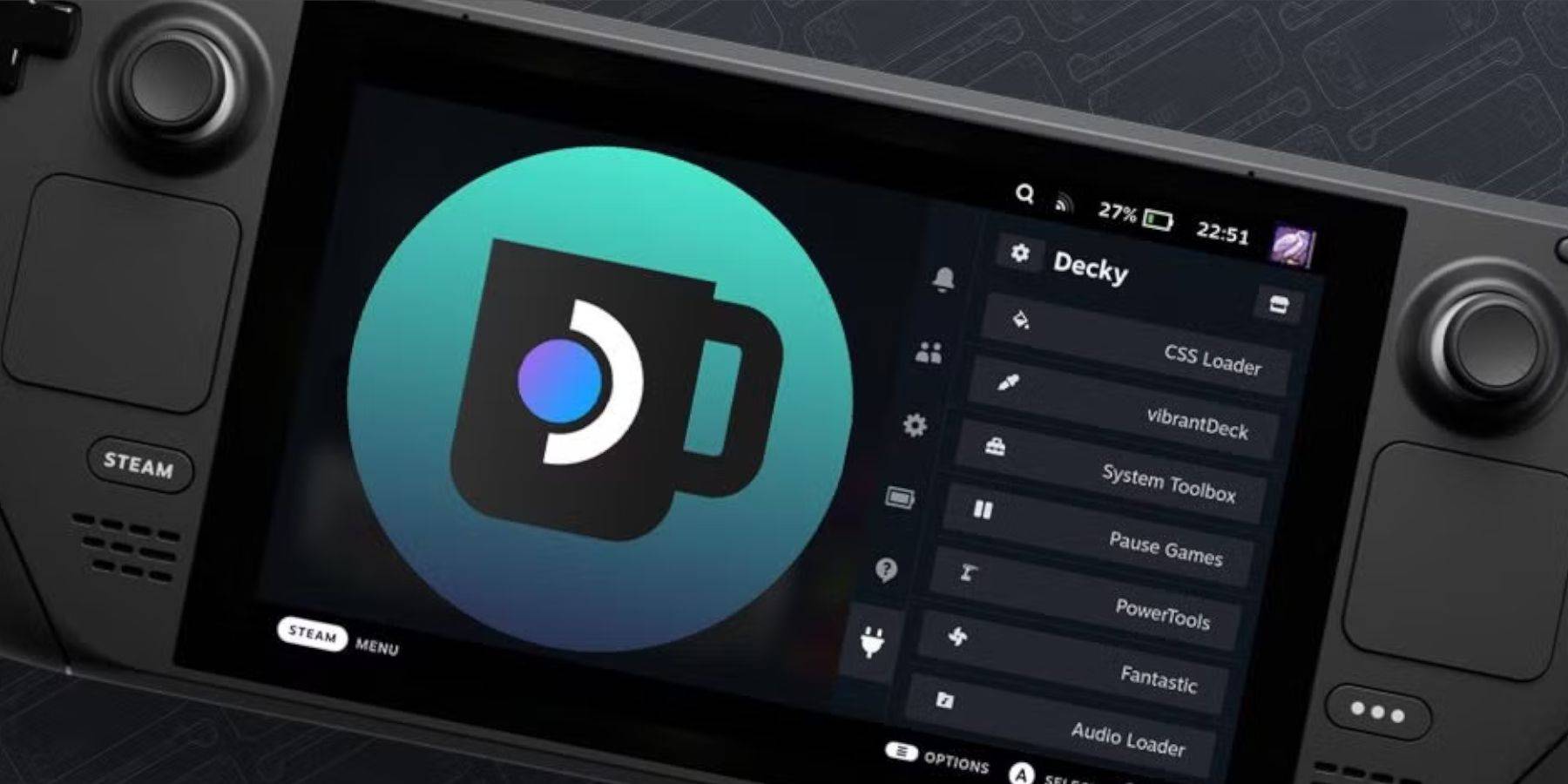 Updates can remove Decky Loader.
- Switch to Desktop Mode.
- Download Decky Loader from GitHub.
- Select Execute.
- Enter your password (or create one).
- Restart in Gaming Mode.









- 1 Roblox Game Codes Updated: April 2025 May 13,2025
- 2 The Best Gaming PC of 2025: Top Prebuilt Desktops Mar 26,2025
- 3 Idle Heroes Team Compositions – January 2025 Mar 16,2025
- 4 Roblox Forsaken Characters Tier List [UPDATED] (2025) Apr 03,2025
- 5 Roblox: Warrior Cats: Ultimate Edition Codes (January 2025) Feb 12,2025
- 6 Tips to Conquer the Dragon Quest III: HD-2D Remake Feb 21,2025
- 7 Pokémon GO Fest 2025: Fest Dates, Locations, Details Revealed Feb 13,2025
- 8 Fortnite: Chapter 6 Season 1 NPC Locations Feb 13,2025





-
Unique Wallpaper Apps for Every Style
A total of 10
-
Top Beauty Trends for This Season
A total of 10
-
Ultimate Baseball Games for Android
A total of 10