Fortnite Chapter 6 Best PC Settings & How To Boost FPS
Fortnite can be incredibly frustrating with poor framerates, making gameplay nearly impossible. Fortunately, many performance issues are easily resolved by adjusting in-game settings. This guide outlines the optimal PC settings for a smoother, more enjoyable Fortnite experience.
Fortnite Best Display Settings
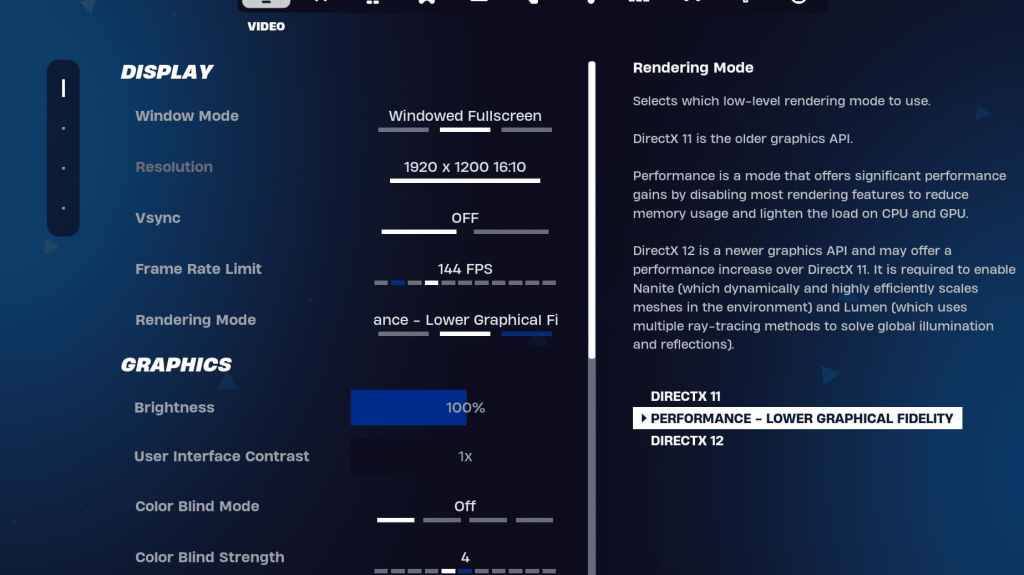
The Video settings are divided into Display and Graphics. Optimizing both is crucial for performance. Here's the recommended Display configuration:
| Setting | Recommended |
| Window Mode | Fullscreen (best performance); Windowed Fullscreen (if frequent alt-tabbing is needed) |
| Resolution | Native monitor resolution (e.g., 1920×1080). Reduce if using a low-end PC. |
| V-sync | Off (prevents significant input lag) |
| Framerate Limit | Monitor Refresh Rate (e.g., 144Hz, 240Hz) |
| Rendering Mode | Performance (maximizes FPS) |
Rendering Modes – Which To Choose?
Fortnite offers three rendering modes: Performance, DirectX 11, and DirectX 12. DirectX 11, the default, is older but stable and generally performs well. DirectX 12, while newer and potentially offering performance boosts on modern systems with enhanced graphics options, may not always be the best choice for pure FPS. For maximum FPS and minimal input lag, Performance mode is the preferred setting for competitive players.
Fortnite Best Graphics Settings
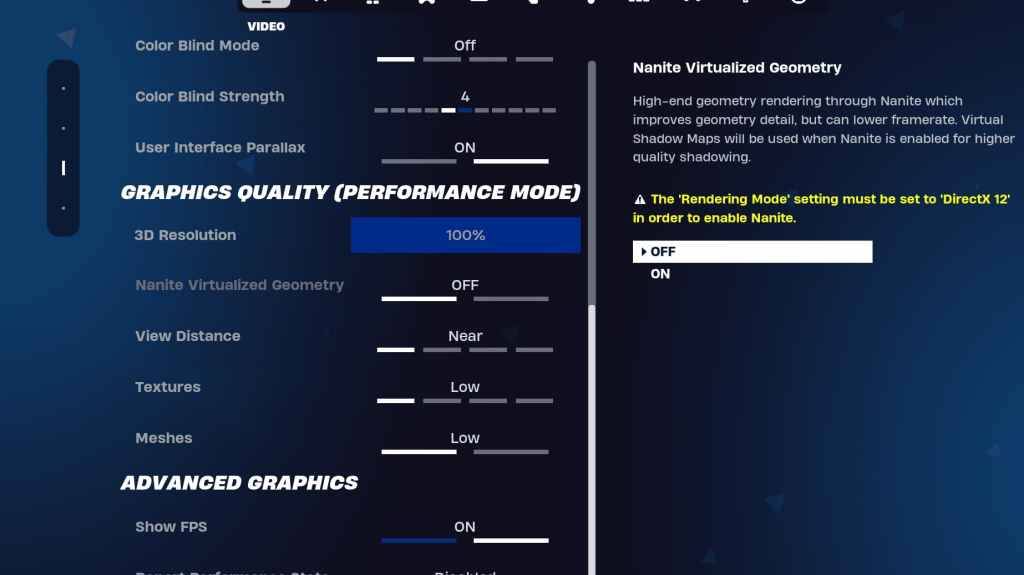
The Graphics settings significantly impact FPS. Configure these to minimize resource usage and maximize frame rates:
| **Setting** | **Recommended** |
| Quality Preset | Low |
| Anti-Aliasing and Super Resolution | Off |
| 3D Resolution | 100% (70-80% for low-end PCs) |
| Nanite Virtual Geometry (DX12 only) | Off |
| Shadows | Off |
| Global Illumination | Off |
| Reflections | Off |
| View Distance | Epic |
| Textures | Low |
| Effects | Low |
| Post Processing | Low |
| Hardware Ray Tracing | Off |
| Nvidia Low Latency Mode (Nvidia GPUs only) | On+Boost |
| Show FPS | On |
Fortnite Best Game Settings
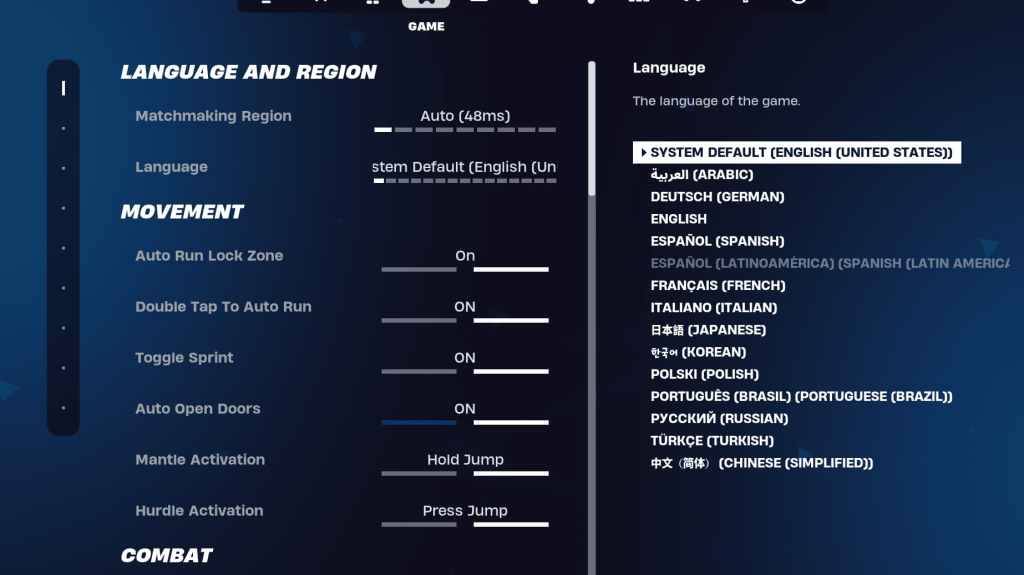
The Game settings don't affect FPS but are crucial for gameplay. While many are personal preference, some are essential:
Movement
- Auto Open Doors: On
- Double Tap to Auto Run: On (controllers)
Combat
- Hold to Swap Pickup: On
- Toggle Targeting: Personal Preference
- Auto Pickup Weapons: On
Building
- Reset Building Choice: Off
- Disable Pre-edit Option: Off
- Turbo Building: Off
- Auto-Confirm Edits: Personal Preference
- Simple Edit: Personal Preference
- Tap to Simple Edit: On (if Simple Edit is on)
Fortnite Best Audio Settings
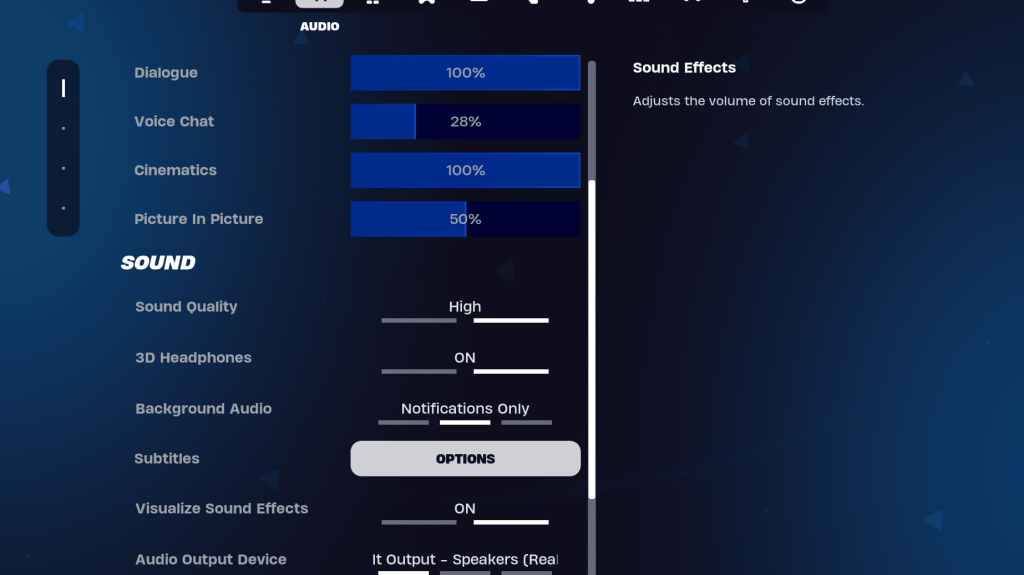
Clear audio is vital in Fortnite. Enable 3D Headphones (experiment for compatibility) and Visualize Sound Effects for improved directional audio and visual cues.
Fortnite Best Keyboard and Mouse Settings
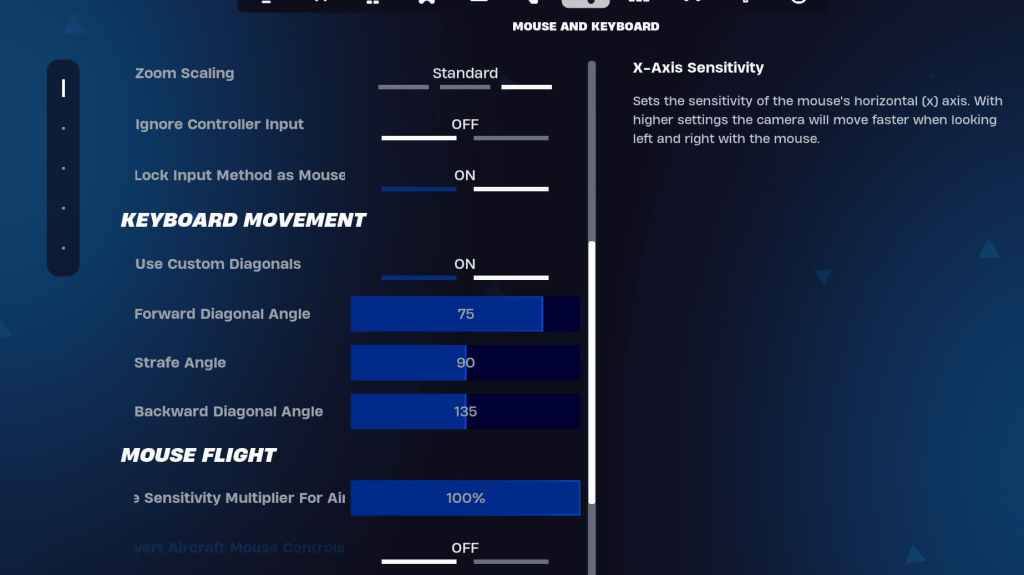
Configure sensitivity and keybinds in the Keyboard and Mouse settings. Adjust sensitivities (X/Y, Targeting, Scope, Building/Editing) to personal preference. Consider using custom diagonals with adjusted angles (Forward: 75-78, Strafe: 90, Backward: 135). Keybinds are highly personal; experiment to find what works best for you.
Fortnite is available on various platforms, including Meta Quest 2 and 3.









- 1 Roblox Game Codes Updated: April 2025 May 13,2025
- 2 The Best Gaming PC of 2025: Top Prebuilt Desktops Mar 26,2025
- 3 Idle Heroes Team Compositions – January 2025 Mar 16,2025
- 4 Roblox Forsaken Characters Tier List [UPDATED] (2025) Apr 03,2025
- 5 Roblox: Warrior Cats: Ultimate Edition Codes (January 2025) Feb 12,2025
- 6 Tips to Conquer the Dragon Quest III: HD-2D Remake Feb 21,2025
- 7 Pokémon GO Fest 2025: Fest Dates, Locations, Details Revealed Feb 13,2025
- 8 Fortnite: Chapter 6 Season 1 NPC Locations Feb 13,2025





-
Unique Wallpaper Apps for Every Style
A total of 10
-
Top Beauty Trends for This Season
A total of 10
-
Ultimate Baseball Games for Android
A total of 10