
Ready or Not: What’s Better, DirectX 11 or DirectX 12 (DX11 vs. DX12)?
Modern games often offer both DirectX 11 and 12 options, and Ready or Not is no exception. This choice can be confusing, especially for less tech-savvy players. While DirectX 12 is newer and *potentially* offers better performance, DirectX 11 is known for its stability. So, which should you choose?
DirectX 11 and DirectX 12: A Simple Explanation
Think of DirectX 11 and 12 as translators between your computer and the game. They help your graphics card (GPU) display the game's visuals. DirectX 11, being older, is simpler for developers to use, resulting in wider compatibility. However, it doesn't always fully utilize your CPU and GPU's power. DirectX 12, the newer option, is more efficient, allowing for better performance optimization. The trade-off? It's more complex for developers to implement.
DirectX 11 or DirectX 12 for Ready or Not?
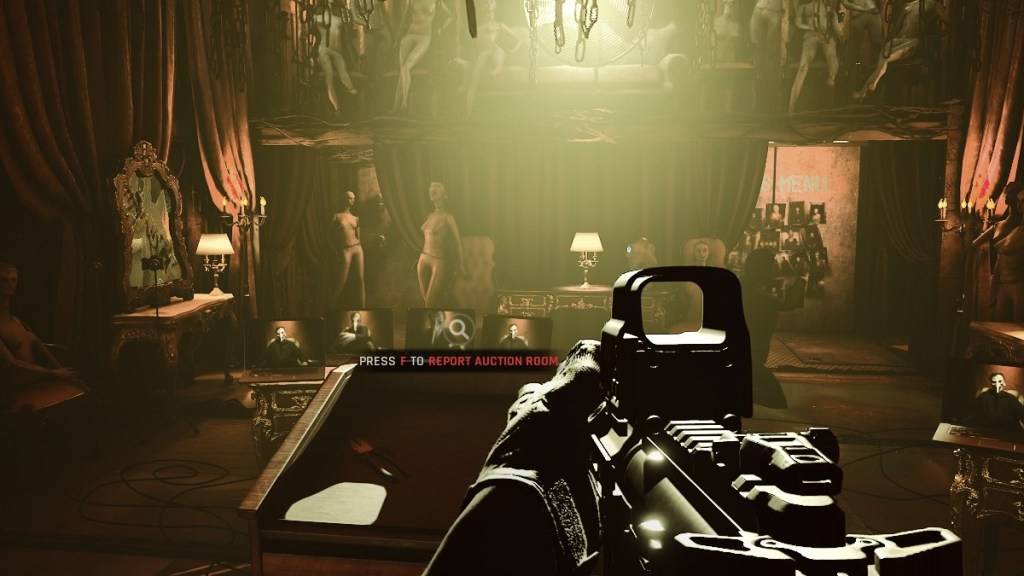
The best choice depends on your system's capabilities. High-end systems with good DirectX 12 support will likely see performance benefits from using DirectX 12. This often translates to higher frame rates, smoother gameplay, and potentially improved visuals. However, DirectX 12 can cause problems on older systems, leading to instability. If you have an older PC, sticking with the more stable DirectX 11 is recommended.
In short: Modern systems? Choose DirectX 12 for potentially better performance. Older systems? Opt for the stability of DirectX 11.
Setting Your Rendering Mode in Ready or Not
You'll usually be prompted to choose your rendering mode (DX11 or DX12) when launching the game through Steam. Simply select your preferred option. Newer PCs should generally choose DX12, while older PCs should stick with DX11.
If this prompt doesn't appear, follow these steps:
- In your Steam library, right-click on Ready or Not and select "Properties."
- Go to the "General" tab and find the "Launch Options" section.
- Enter either
-dx11or-dx12in the Launch Options field, depending on your choice.
Ready or Not is available now for PC.











- 1 Roblox Game Codes Updated: April 2025 May 13,2025
- 2 The Best Gaming PC of 2025: Top Prebuilt Desktops Mar 26,2025
- 3 Idle Heroes Team Compositions – January 2025 Mar 16,2025
- 4 Roblox Forsaken Characters Tier List [UPDATED] (2025) Apr 03,2025
- 5 Tips to Conquer the Dragon Quest III: HD-2D Remake Feb 21,2025
- 6 Roblox: Warrior Cats: Ultimate Edition Codes (January 2025) Feb 12,2025
- 7 Fortnite: Chapter 6 Season 1 NPC Locations Feb 13,2025
- 8 Pokémon GO Fest 2025: Fest Dates, Locations, Details Revealed Feb 13,2025





-
Unique Wallpaper Apps for Every Style
A total of 10
-
Top Beauty Trends for This Season
A total of 10
-
Ultimate Baseball Games for Android
A total of 10