
Subtle aspects in Overwatch 2: expand the boundaries and change the nickname
Your Overwatch 2 in-game name—more formally known as your BattleTag—is your digital identity within the Blizzard ecosystem. It's a reflection of you, your personality, and your gaming prowess. But what happens when that cool name starts to feel, well, *not so cool* anymore? Fortunately, changing your name is a straightforward process, though it varies slightly depending on your platform.
Table of Contents
- Can you change your name in Overwatch 2?
- How to Change Your Name in Overwatch 2
- Changing Your Nick on PC
- Changing Your Name on Xbox
- Changing Your Username on PlayStation
- Final Recommendations
Can you change your name in Overwatch 2?
Yes! Changing your Overwatch 2 name is possible, and this guide will walk you through the process for PC and console players.
How to Change Your Name in Overwatch 2
Your in-game name is tied to your Battle.net account. This means changing your BattleTag will update your name across all Blizzard games, including Overwatch 2.
Important Considerations:
- You get one free BattleTag change.
- Subsequent changes incur a fee (approximately $10 USD; check the Battle.net shop for your region's pricing).
- If you have cross-platform play enabled, the process is the same across all platforms.
- If cross-platform play is disabled, you'll need to change your name through your console's settings.
Changing Your Nick on PC
For PC players, or console players with cross-platform play enabled, follow these steps:
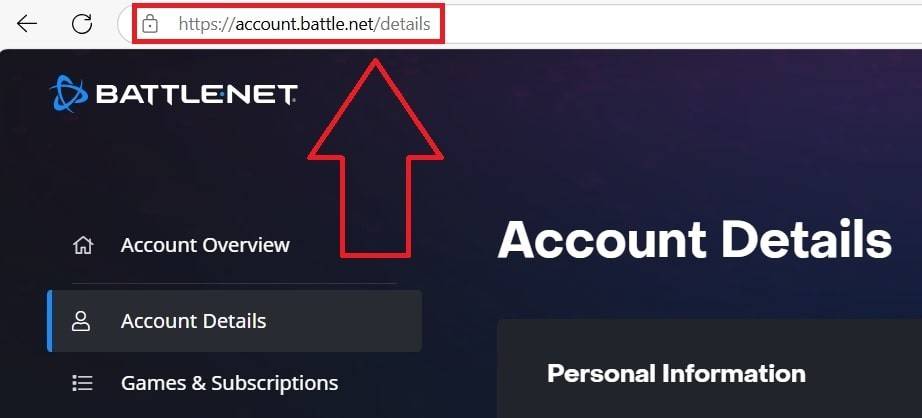
- Log in to the official Battle.net website.
- Click your current username in the top-right corner.
- Select "Account Settings."
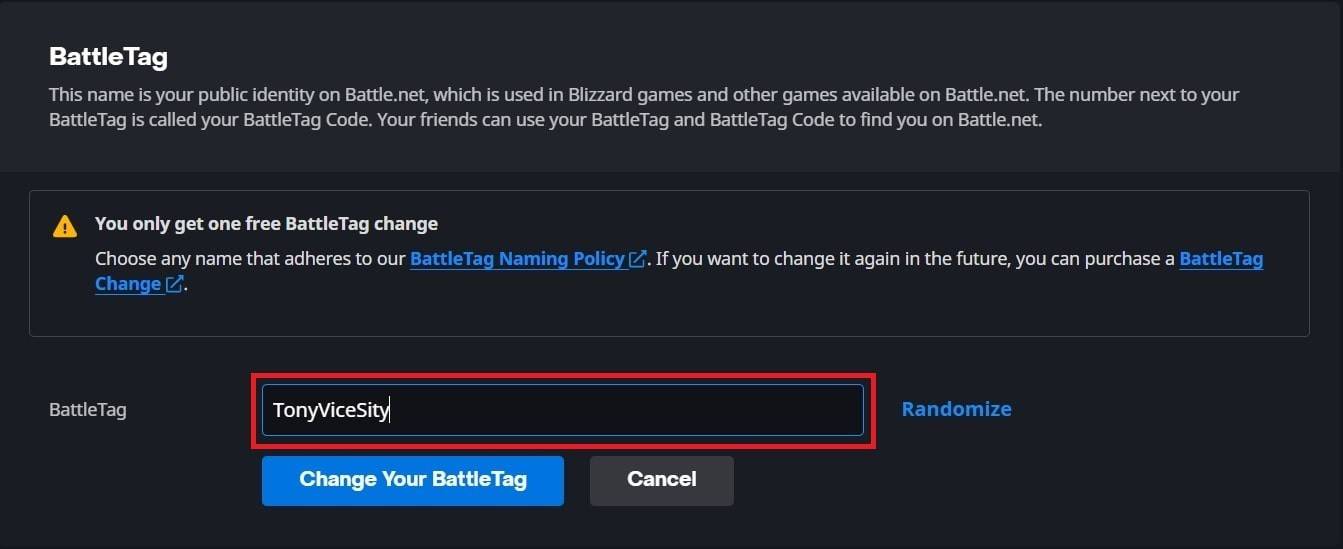
- Locate your BattleTag and click the blue "Update" pencil icon.
- Enter your new desired name (following BattleTag naming policies).
- Click "Change Your BattleTag."



Note: The change may take up to 24 hours to fully propagate.
Changing Your Name on Xbox
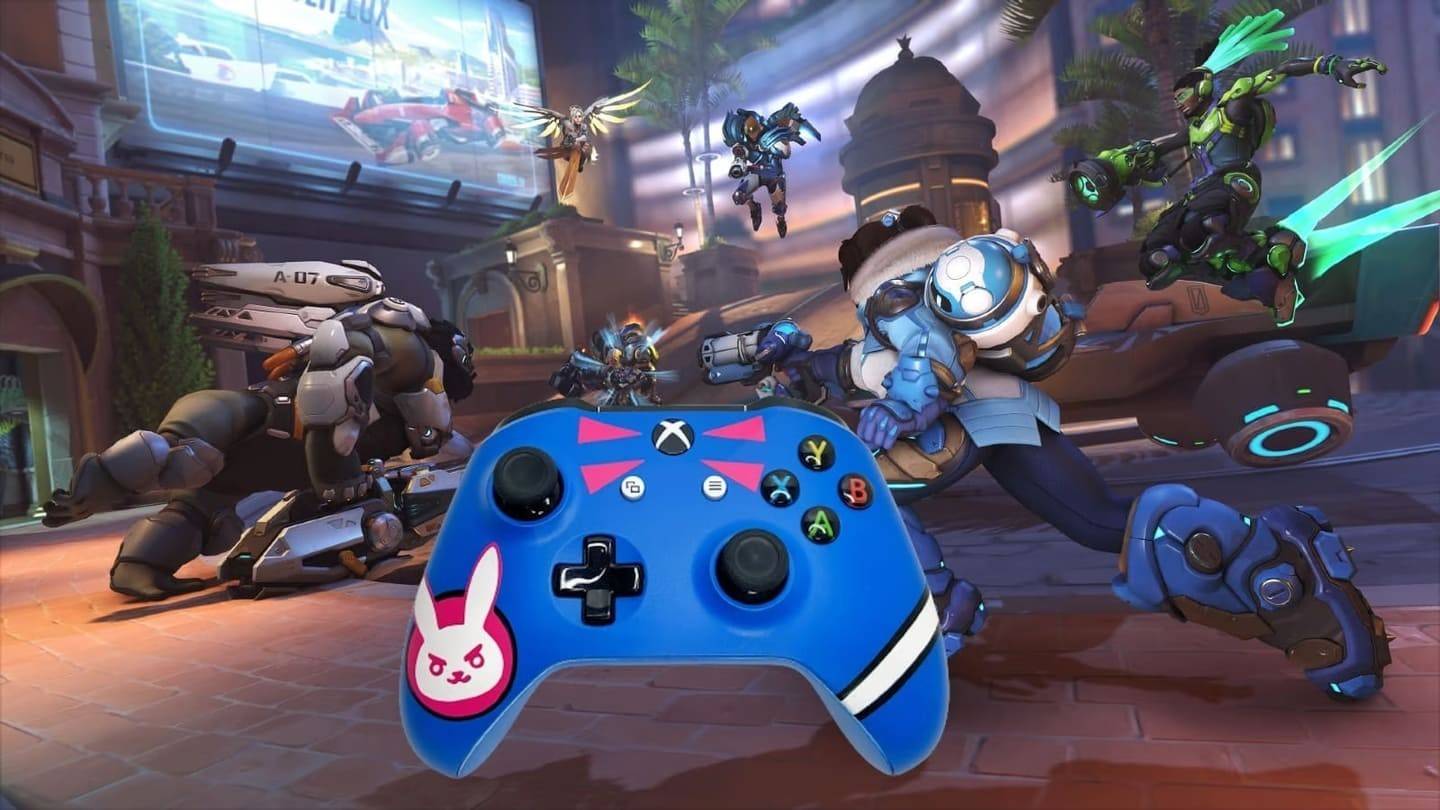
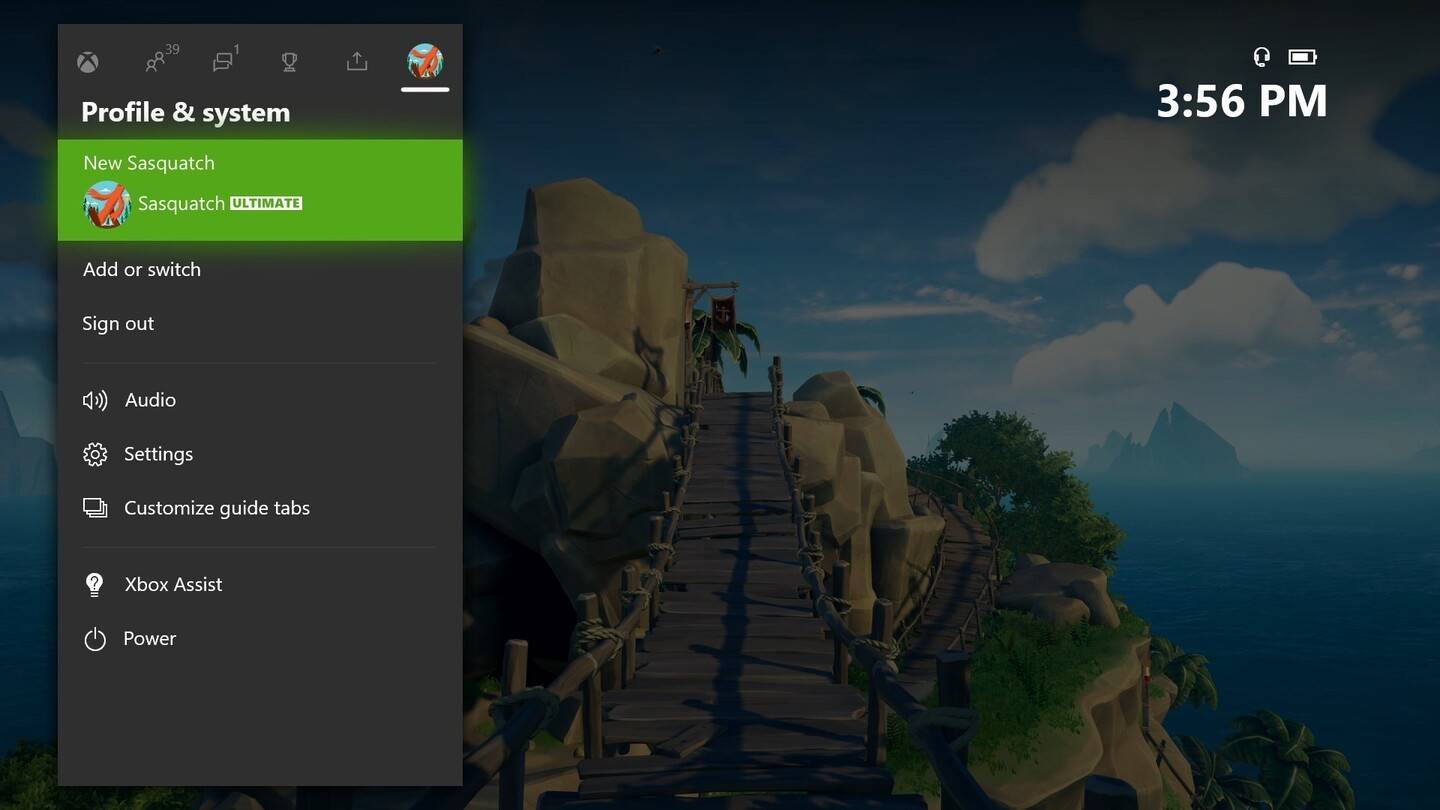
If you play on Xbox with cross-platform play disabled, your in-game name is your Xbox Gamertag:
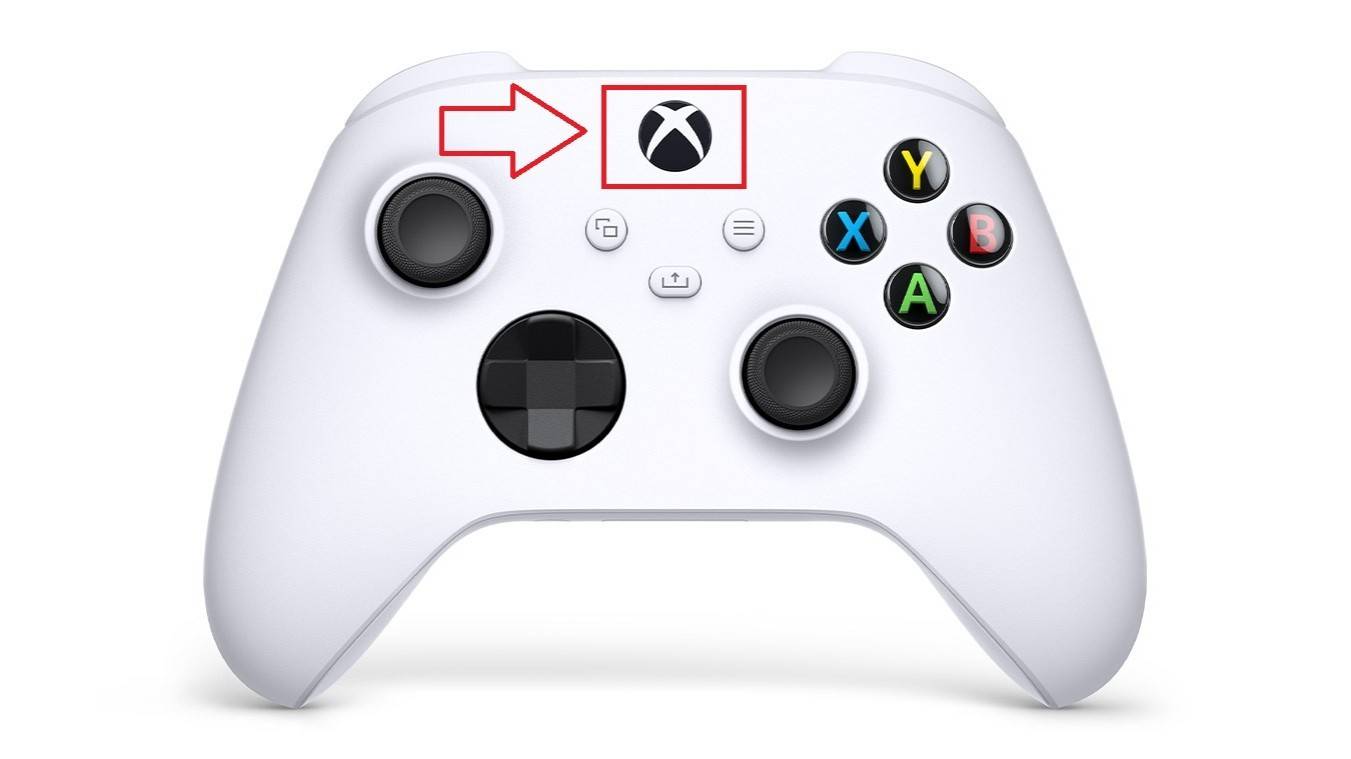
- Press the Xbox button.
- Go to "Profile & System," then your profile.
- Select "My Profile," then "Customize Profile."
- Click your Gamertag, enter your new name, and follow the on-screen instructions.


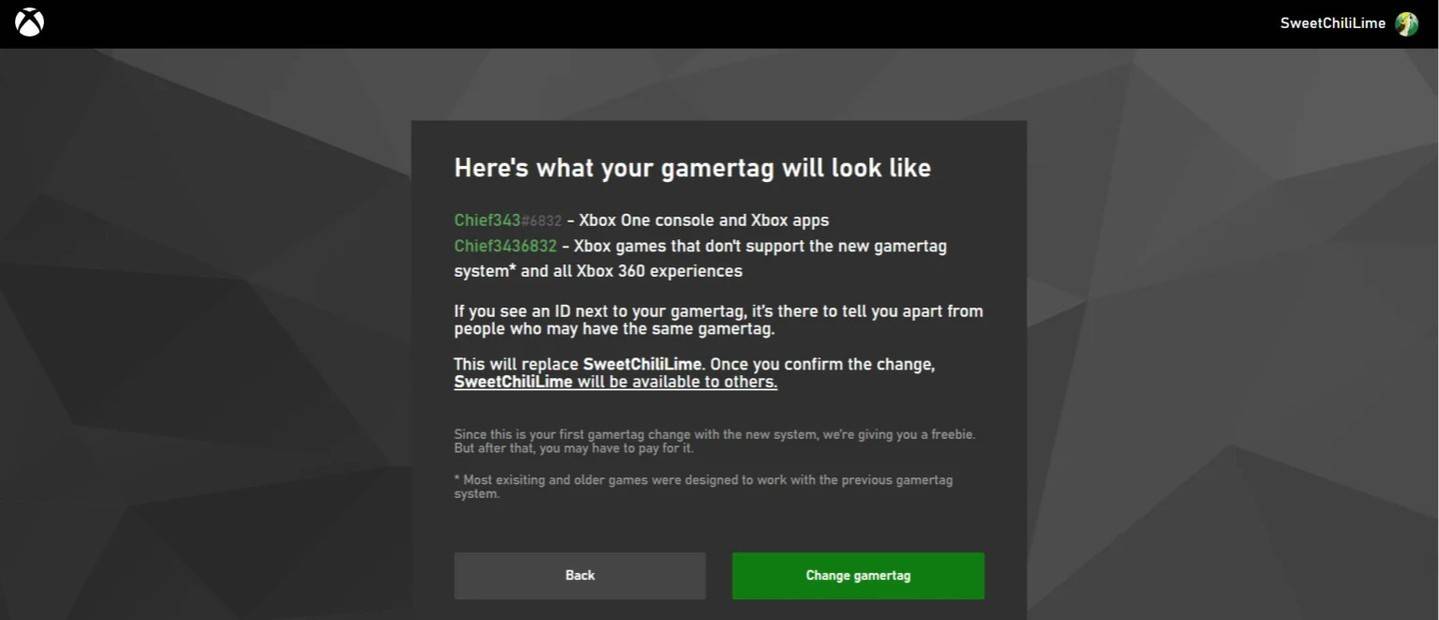
Note: With cross-play disabled, only other Xbox players with cross-play disabled will see your new name.
Changing Your Username on PlayStation
On PlayStation, your in-game name is your PSN ID. If cross-platform play is disabled:
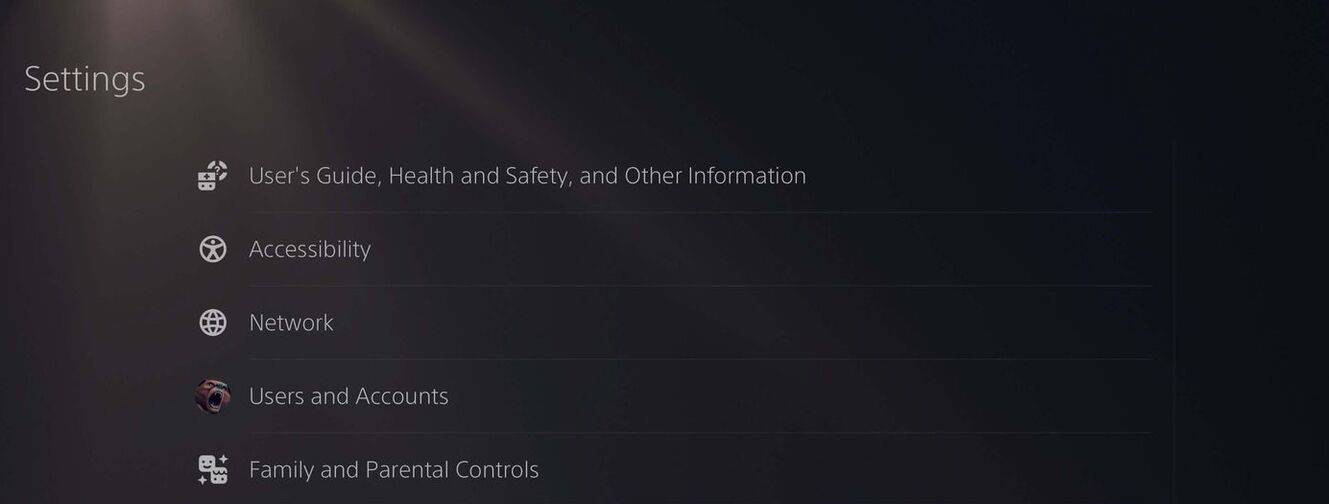
- Go to "Settings," then "Users and Accounts."
- Select "Accounts," then "Profile."
- Find "Online ID" and click "Change Online ID."
- Enter your new name and confirm.
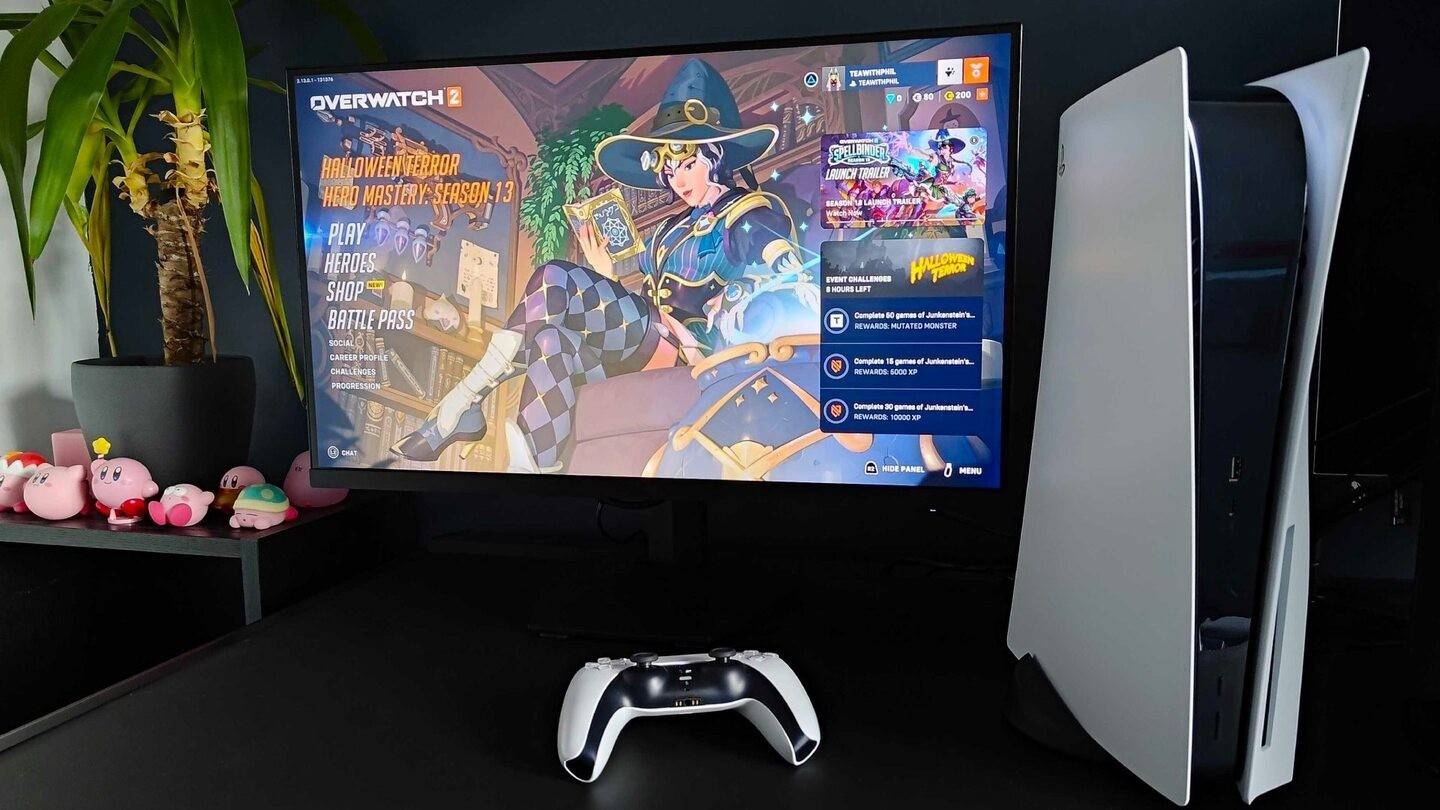


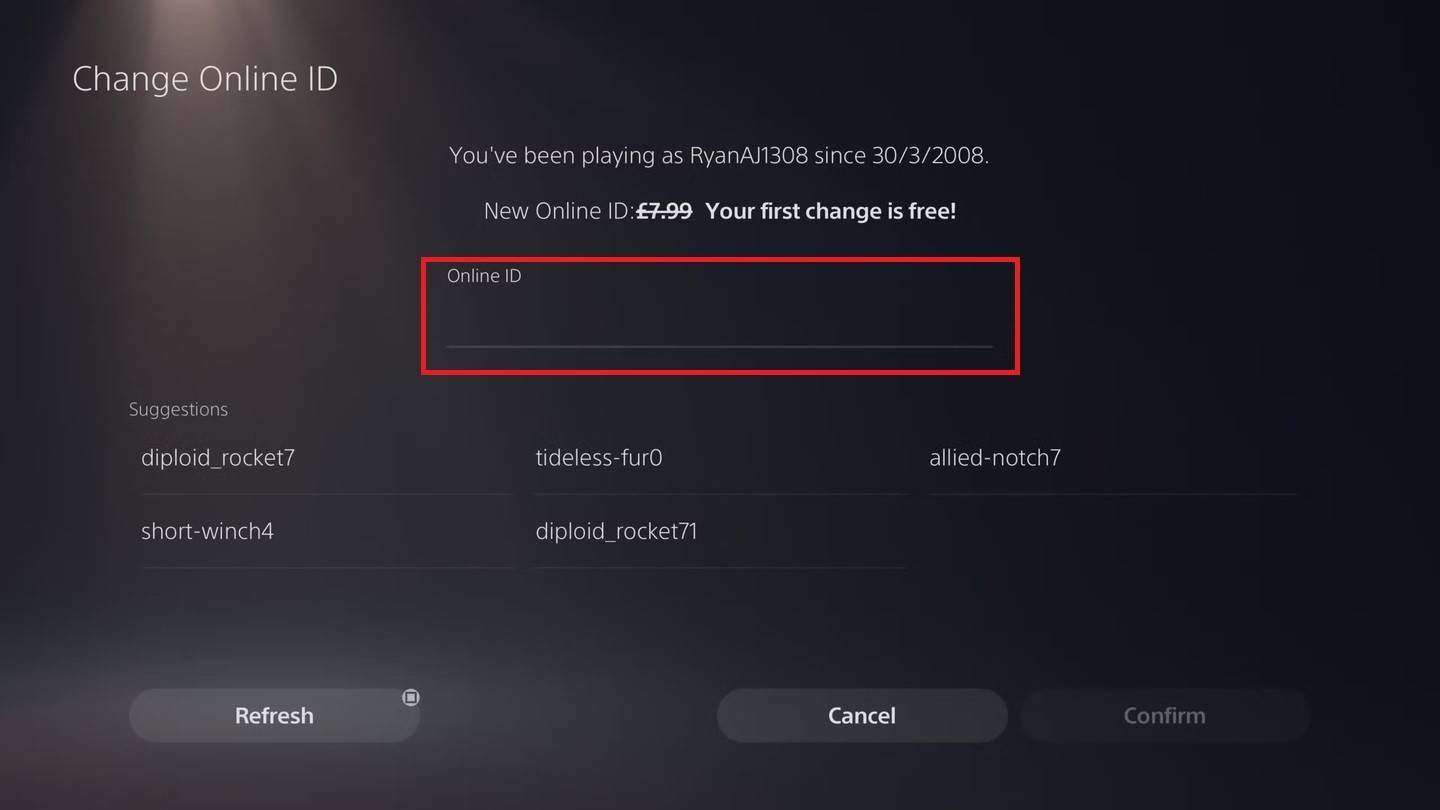

Note: Similar to Xbox, your new PSN ID will only be visible to other PlayStation players with cross-play disabled.
Final Recommendations
Before changing your name:
- Cross-platform play status: Determine if cross-play is enabled to choose the correct method.
- Free change: Remember, you only get one free BattleTag change.
- Payment: Subsequent changes require payment; ensure sufficient funds in your Battle.net Wallet.
By following these steps, you can easily update your Overwatch 2 name and maintain a gaming identity that's always fresh and current.










- 1 Roblox Game Codes Updated: April 2025 May 13,2025
- 2 The Best Gaming PC of 2025: Top Prebuilt Desktops Mar 26,2025
- 3 Idle Heroes Team Compositions – January 2025 Mar 16,2025
- 4 Roblox Forsaken Characters Tier List [UPDATED] (2025) Apr 03,2025
- 5 Fortnite: Chapter 6 Season 1 NPC Locations Feb 13,2025
- 6 Roblox: Warrior Cats: Ultimate Edition Codes (January 2025) Feb 12,2025
- 7 Tips to Conquer the Dragon Quest III: HD-2D Remake Feb 21,2025
- 8 Pokémon GO Fest 2025: Fest Dates, Locations, Details Revealed Feb 13,2025





-
Unique Wallpaper Apps for Every Style
A total of 10
-
Top Beauty Trends for This Season
A total of 10
-
Ultimate Baseball Games for Android
A total of 10