Optimal Marvel Rivals Settings: Enhance Frames, Cut Input Lag
*Marvel Rivals* has stormed into the gaming scene, captivating players with its fast-paced action, iconic heroes, and stunning visuals. To enhance your gameplay experience and ensure your hardware performs at its best, fine-tuning your settings is essential. Let's dive into optimizing your display, graphics, and audio settings to transform your gameplay into a fluid, responsive masterpiece, allowing you to unleash your inner superhero.
Related: All New Skins in the Marvel Rivals Winter Celebration Event
Note: Settings not covered in this guide, such as Binds, Accessibility, and Social Settings, are left to personal preference.
Marvel Rivals Best Display Settings
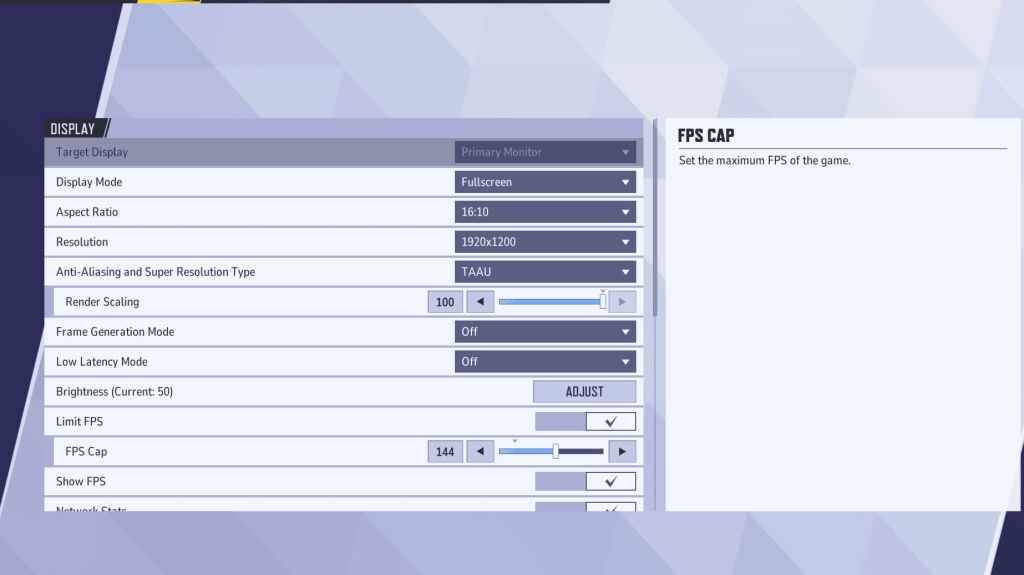
The foundation of your gaming experience lies in your display settings. Opting for Fullscreen mode is crucial for dedicated gamers as it allocates all system resources to the game, boosting FPS and minimizing distractions. If you frequently switch between tasks, consider Borderless Windowed mode, though it may slightly impact performance.
Here are the optimal display settings for Marvel Rivals:
| Settings | Description | Best Settings |
|---|---|---|
| Display Mode | Determines how the game is displayed on your screen. | Fullscreen mode prioritizes game performance, while borderless windowed mode allows easier multitasking. |
| Resolution | Sets the game's resolution. | Monitor's Native Resolution |
| Aspect Ratio | Adjusts the game’s display to match your monitor’s native ratio, preventing distortion. | Monitor's Native Aspect Ratio |
| Anti-aliasing and Super Resolution Type | Handles antialiasing and resolution scaling. | TAAU is recommended, but experiment for optimal performance. |
| Frame Generation | Can vary in impact depending on your PC. | Off |
| Low Latency Mode | Reduces input lag, available with Nvidia GPUs. | On + Boost, if available. |
| V-Sync | Synchronizes the game's frame rate with your monitor's refresh rate to prevent screen tearing. | Off |
| Limit FPS | Caps the maximum frame rate to stabilize performance and reduce GPU strain. | Set to the monitor's refresh rate. |
| Show FPS | Displays your current frames per second on-screen. | On |
| Network Stats | Shows network performance in real time. | On |
Marvel Rivals Best Graphics Settings
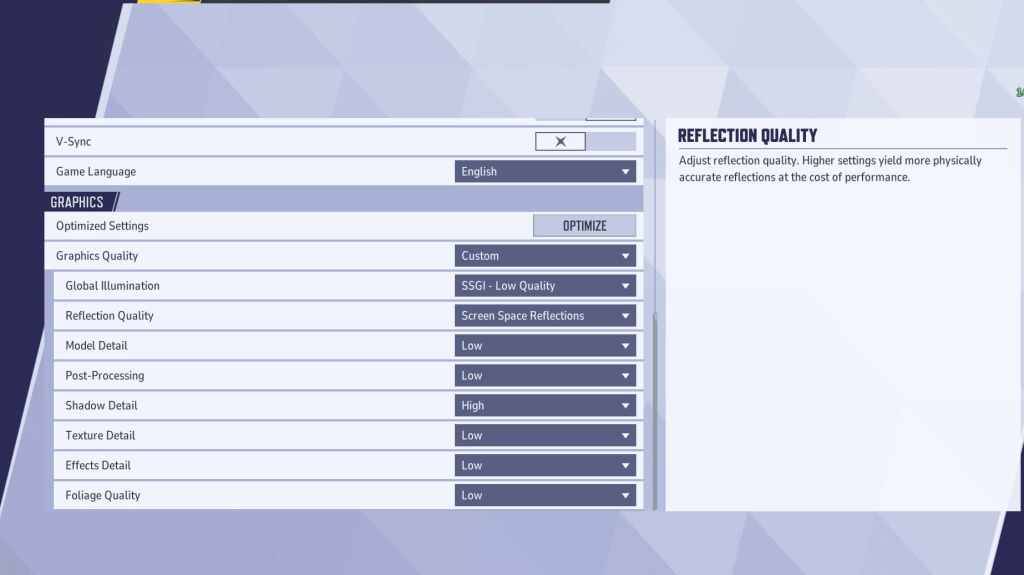
Graphics settings significantly affect performance. Prioritize performance over visual fidelity by setting most options to the lowest settings to increase frame rates. While the visuals may not be as striking, your gameplay will feel smoother and more responsive, a key factor for competitive players.
For those with high-end PCs, you can selectively increase some settings to Medium or High for enhanced visuals. However, if your focus is on competitive play, performance should always come first.
| Settings | Description | Best Settings |
|---|---|---|
| Graphics Quality | Adjusts multiple visual settings at once. | Custom |
| Global Illumination | Simulates light bouncing off surfaces for enhanced realism. | SSGI – Low Quality |
| Reflection Quality | Affects the clarity and realism of reflections. | Screen Space Reflections |
| Model Detail | Controls the complexity of character and object models. | Low |
| Post-Processing | Applies visual effects like motion blur and depth of field. | Low |
| Shadow Detail | Adjusts the quality of shadows. | High |
| Texture Detail | Determines the resolution of in-game textures. | Low |
| Effects Detail | Enhances the quality of visual effects. | Low |
| Foliage Quality | Adjusts the detail of environmental elements. | Low |
Additionally, disable mouse acceleration, which is on by default in Marvel Rivals. It can significantly affect your aiming precision, so turn it off both in the game and in Windows Settings.
Marvel Rivals Best Audio Settings
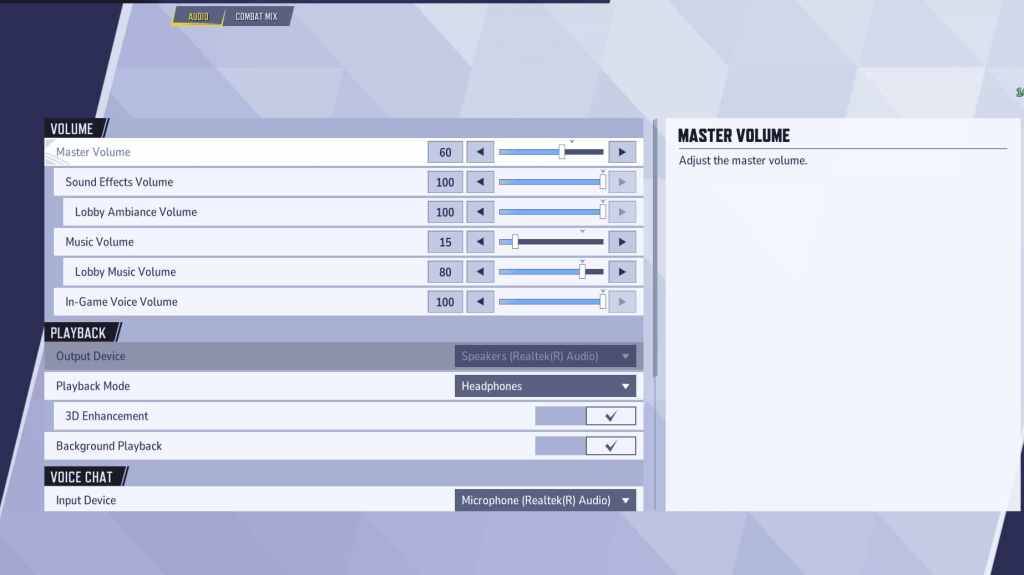
In Marvel Rivals, audio settings can be a game-changer. Activating 3D Enhancement improves spatial sound, helping you pinpoint enemy movements and incoming abilities. If available, use HRTF to further enhance audio cues. Adjust the Volume level to your liking.
Next: Best Team-Up Abilities in Marvel Rivals









- 1 Roblox Game Codes Updated: April 2025 May 13,2025
- 2 The Best Gaming PC of 2025: Top Prebuilt Desktops Mar 26,2025
- 3 Idle Heroes Team Compositions – January 2025 Mar 16,2025
- 4 Roblox Forsaken Characters Tier List [UPDATED] (2025) Apr 03,2025
- 5 Tips to Conquer the Dragon Quest III: HD-2D Remake Feb 21,2025
- 6 Roblox: Warrior Cats: Ultimate Edition Codes (January 2025) Feb 12,2025
- 7 Pokémon GO Fest 2025: Fest Dates, Locations, Details Revealed Feb 13,2025
- 8 Fortnite: Chapter 6 Season 1 NPC Locations Feb 13,2025




-
Unique Wallpaper Apps for Every Style
A total of 10
-
Top Beauty Trends for This Season
A total of 10
-
Ultimate Baseball Games for Android
A total of 10