
Splitgate 2: Max FPS & Visibility Settings
Splitgate 2 is one of the most anticipated games of 2025, a highly anticipated sequel to a beloved title. While still in Alpha, players are already diving in, encountering performance issues like crashes and frame drops. Optimizing your settings is key to a smoother, lag-free experience. This guide details the best settings for maximizing frame rate and minimizing input lag in Splitgate 2.
Recommended Videos
Related: What Is Splitgate 2’s Release Date?
Splitgate 2 System Requirements
Before optimizing, ensure your system meets the minimum or recommended requirements:
Minimum:
- Processor: Intel® Core™ i3-6100 / Core™ i5-2500K or AMD Ryzen™ 3 1200
- Memory: 8 GB RAM
- Graphics: NVIDIA® GeForce® GTX 960 or AMD Radeon™ RX 470
Recommended:
- Processor: Intel® Core™ i5-6600K / Core™ i7-4770 or AMD Ryzen™ 5 1400
- Memory: 12 GB RAM
- Graphics: NVIDIA® GeForce® GTX 1060 or AMD Radeon™ RX 580
Splitgate 2 Best Video Settings
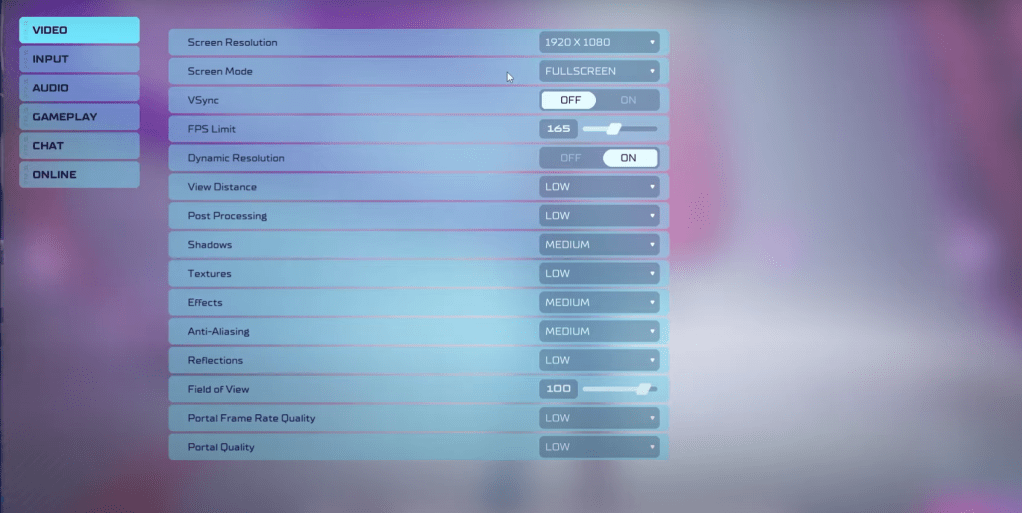
In a competitive shooter like Splitgate 2, performance trumps visual fidelity. The settings below prioritize high frame rates and responsiveness:
- Screen Resolution: Monitor’s Native (1920x1080 is common)
- Screen Mode: Borderless Fullscreen (for easy Alt+Tabbing), otherwise Fullscreen.
- VSync: Off (significantly reduces input lag)
- FPS Limit: Monitor’s Refresh Rate (60, 144, 165, 240, etc.)
- Dynamic Resolution: On (experiment with Off; results vary by system)
- View Distance: Low
- Post Processing: Low
- Shadows: Medium (Low for older systems)
- Effects: Low
- Anti-Aliasing: Low (increase if shimmering is noticeable)
- Reflection: Low
- Field of View: Maximum (though slightly reducing it may improve performance)
- Portal Frame Rate Quality: Low
- Portal Quality: Low
While most settings should be set to Low, consider increasing Effects and Anti-aliasing for improved visuals if performance allows. The Field of View (FOV) significantly impacts frame rate; maximizing it is ideal for competitive play, but a slight reduction may boost performance.
Other Recommended Splitgate 2 Settings
These settings don't directly impact FPS but enhance gameplay:
- Sensitivity: Adjust to your preference; use online calculators for conversions from other games.
- Audio: Lower in-game music volume to reduce distractions. Enable Windows Spatial Sound for improved audio cues.
By implementing these settings, you'll significantly improve your Splitgate 2 experience. Remember, individual results may vary depending on your hardware.
Related: 10 of the Most Fun Games to Play With Friends











- 1 Roblox Game Codes Updated: April 2025 May 13,2025
- 2 The Best Gaming PC of 2025: Top Prebuilt Desktops Mar 26,2025
- 3 Idle Heroes Team Compositions – January 2025 Mar 16,2025
- 4 Roblox Forsaken Characters Tier List [UPDATED] (2025) Apr 03,2025
- 5 Fortnite: Chapter 6 Season 1 NPC Locations Feb 13,2025
- 6 Roblox: Warrior Cats: Ultimate Edition Codes (January 2025) Feb 12,2025
- 7 Tips to Conquer the Dragon Quest III: HD-2D Remake Feb 21,2025
- 8 Pokémon GO Fest 2025: Fest Dates, Locations, Details Revealed Feb 13,2025





-
Unique Wallpaper Apps for Every Style
A total of 10
-
Top Beauty Trends for This Season
A total of 10
-
Ultimate Baseball Games for Android
A total of 10